
How to dub a video
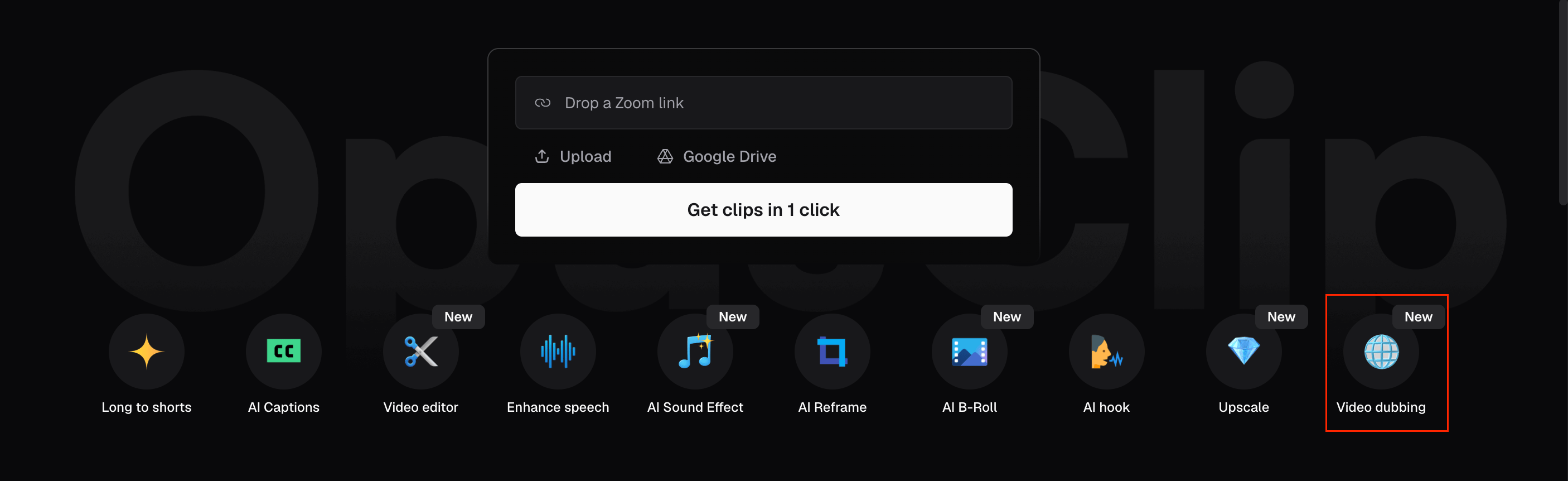
- Click Video dubbing in the Quick Start menu on the OpusClip dashboard.
- Paste a YouTube link, upload a file, or connect Google Drive. Select your target language and click Dub Video. OpusClip clones your voice from the source video and generates the dubbed audio automatically.
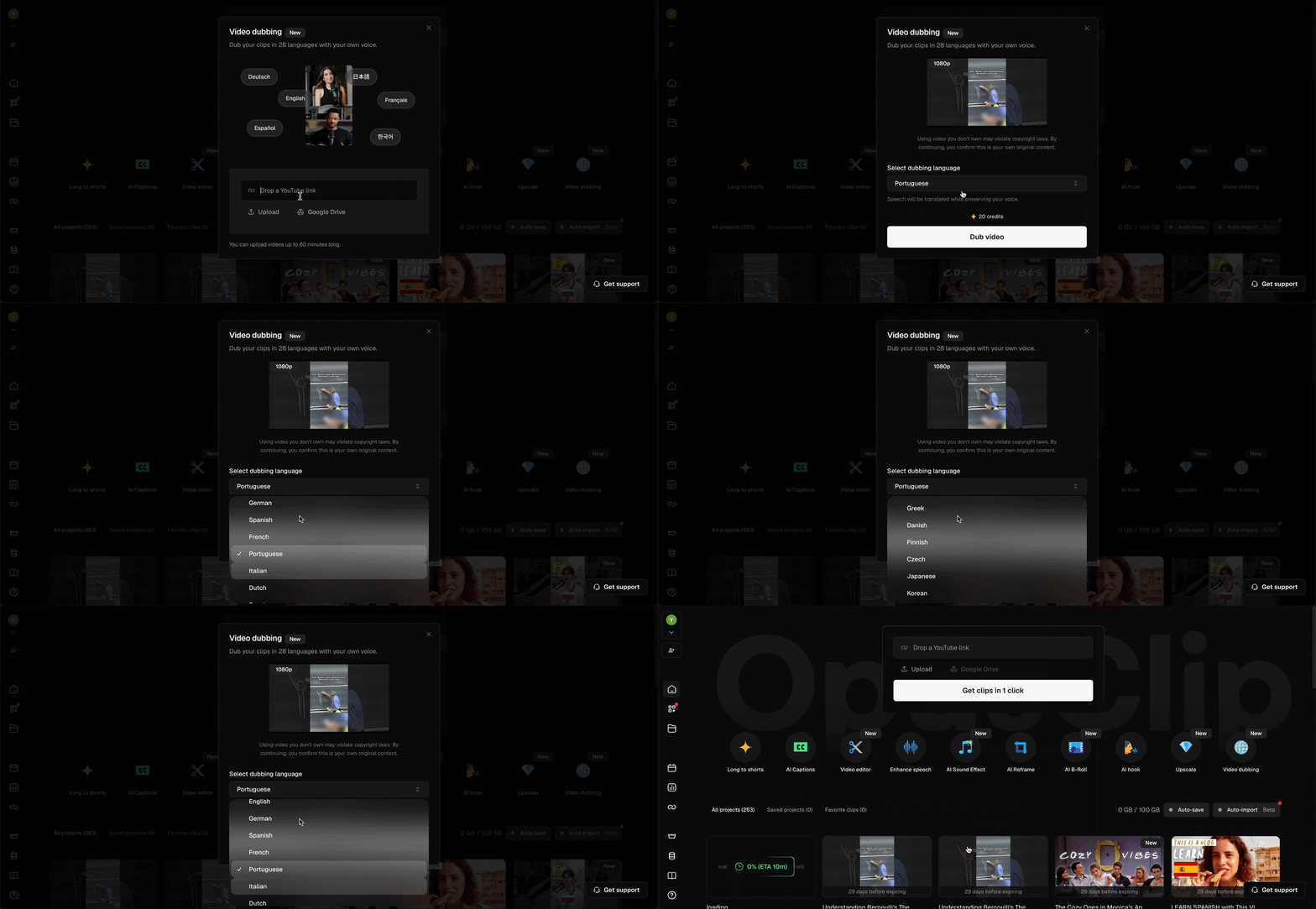
- When processing is complete, the dubbed video appears as a new asset in your project, ready to preview and export.
Other ways to access Video Dubbing
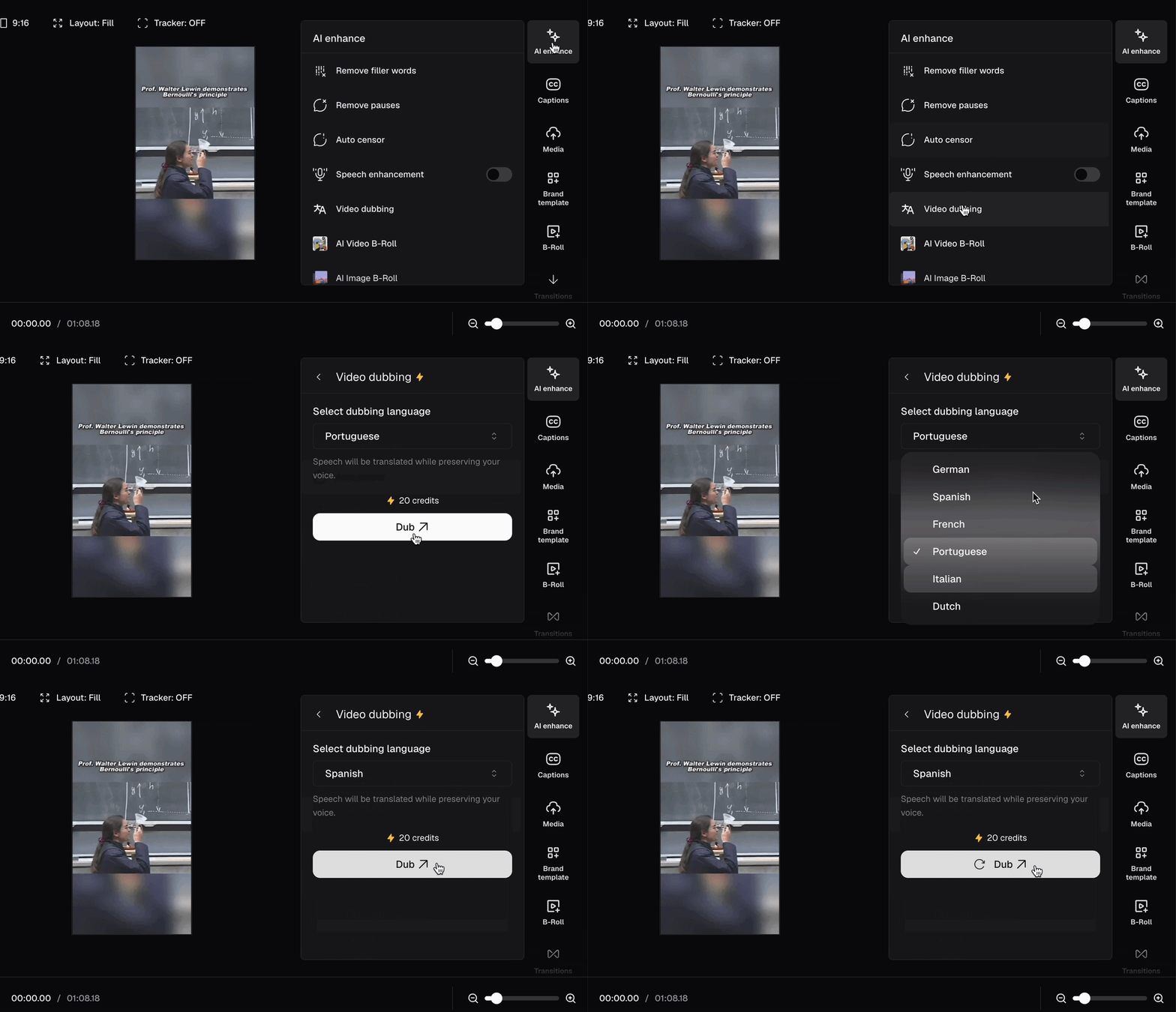
- From the editor — Open a clip in the editor and click AI enhance in the right sidebar. Click Video dubbing, then use the Select dubbing language dropdown to choose your target language and confirm.
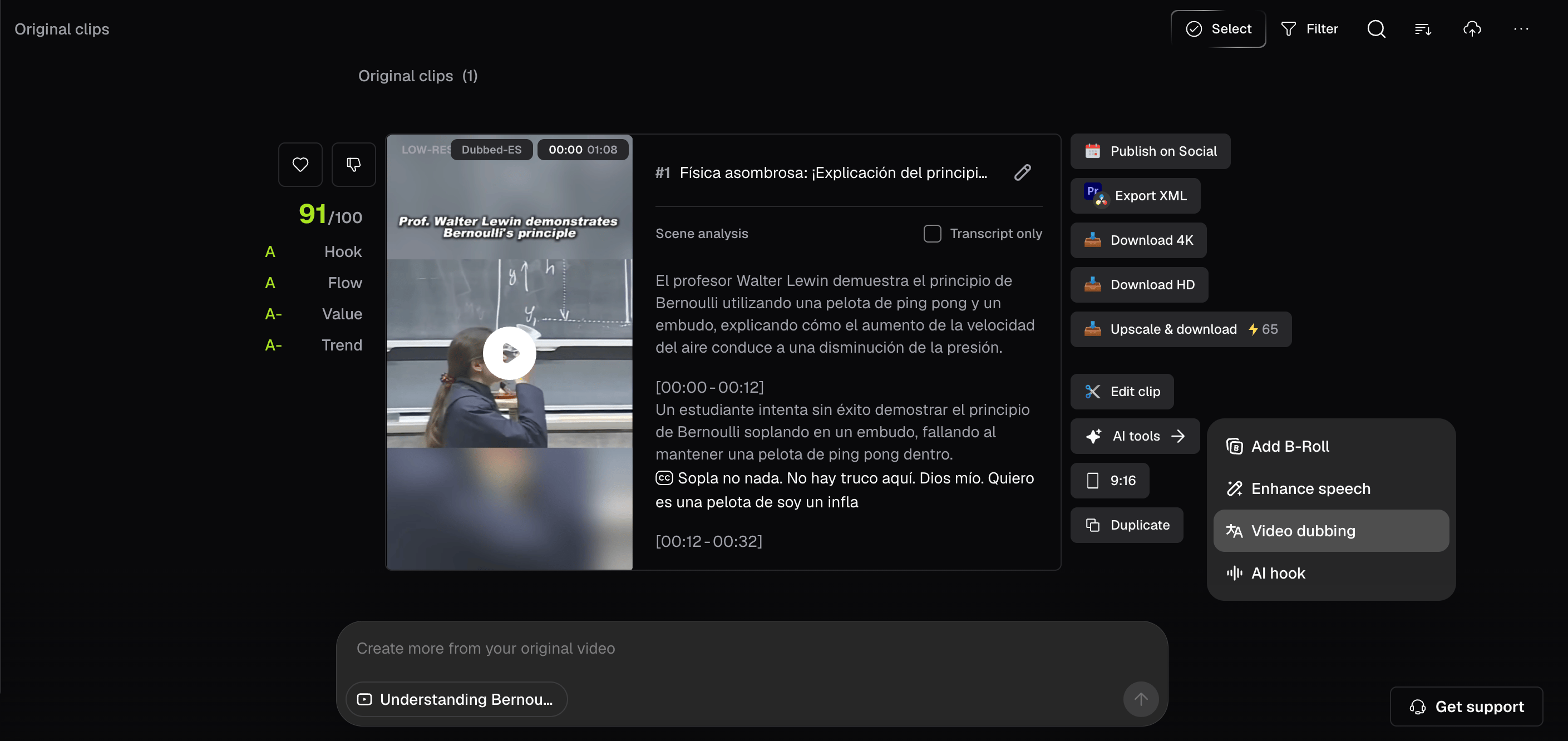
- From the results page — Click AI tools, then select Video dubbing from the dropdown.
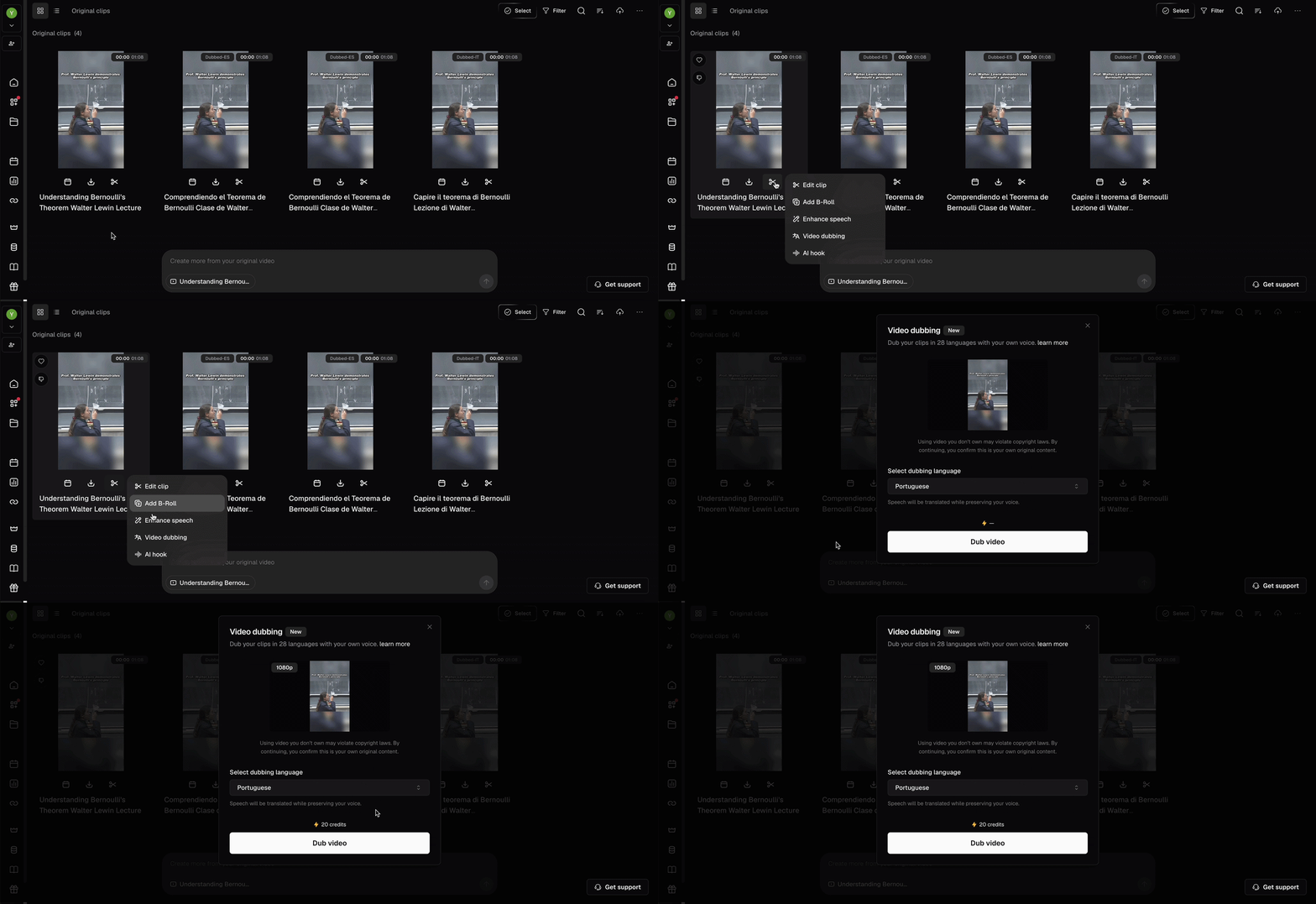
- From the Grid View — Hover over any clip in your library and click the Edit (scissors icon) menu. Select Video dubbing from the dropdown.
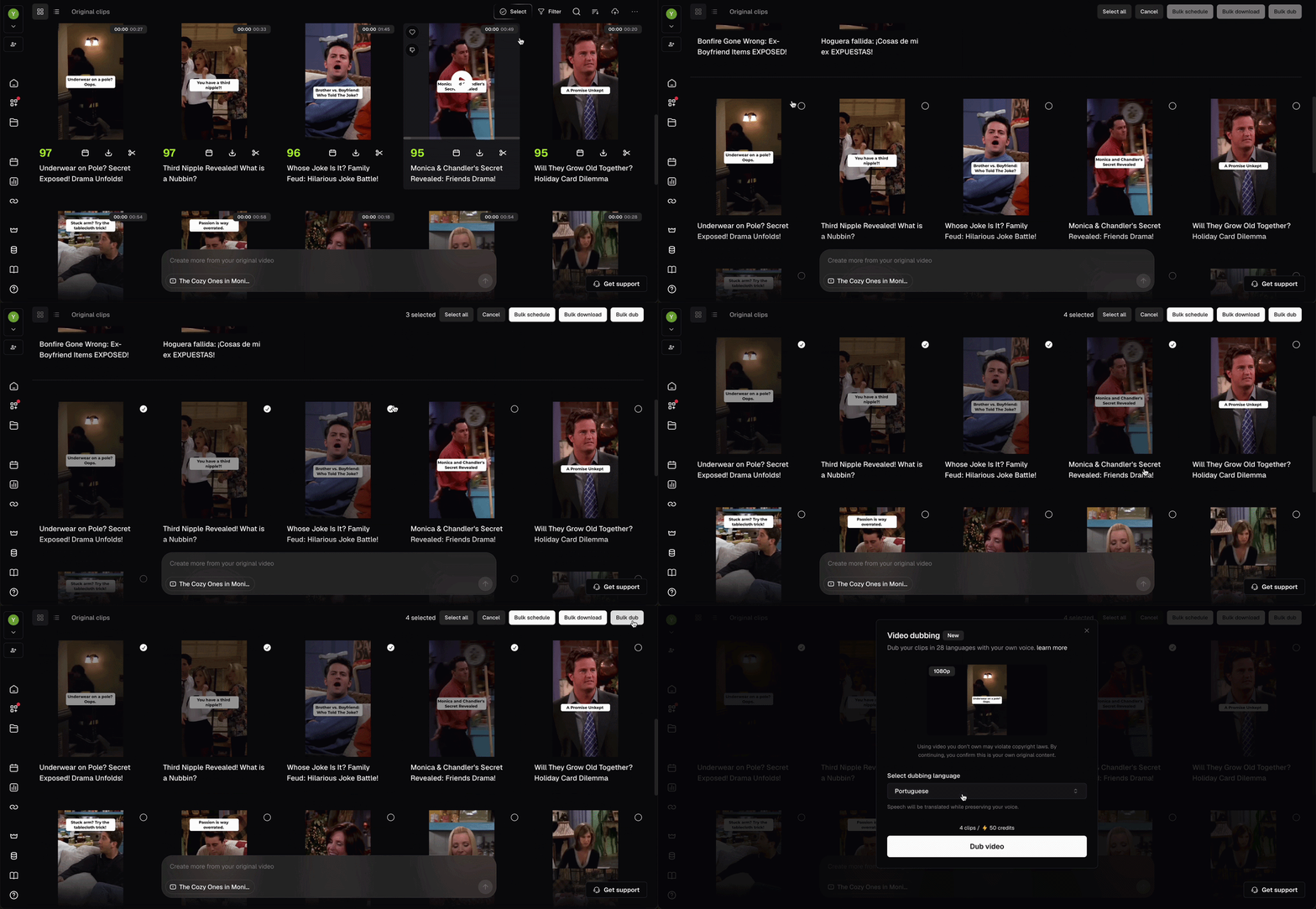
- Bulk dubbing — Select multiple clips using the checkboxes, then click Bulk dub in the action bar at the top right. Choose a language, confirm, and each clip is processed individually. When the full batch is complete, you’ll receive a notification.
Editing the dubbed transcript
After dubbing is complete, open the dubbed clip in the editor. The translated transcript appears in the left panel — click Edit clip from your library to open it. Click any word or segment in the transcript to edit it inline. A text field appears with Apply, Apply to all, and Cancel options. Changes reflect immediately in both the transcript and the subtitles on the video preview.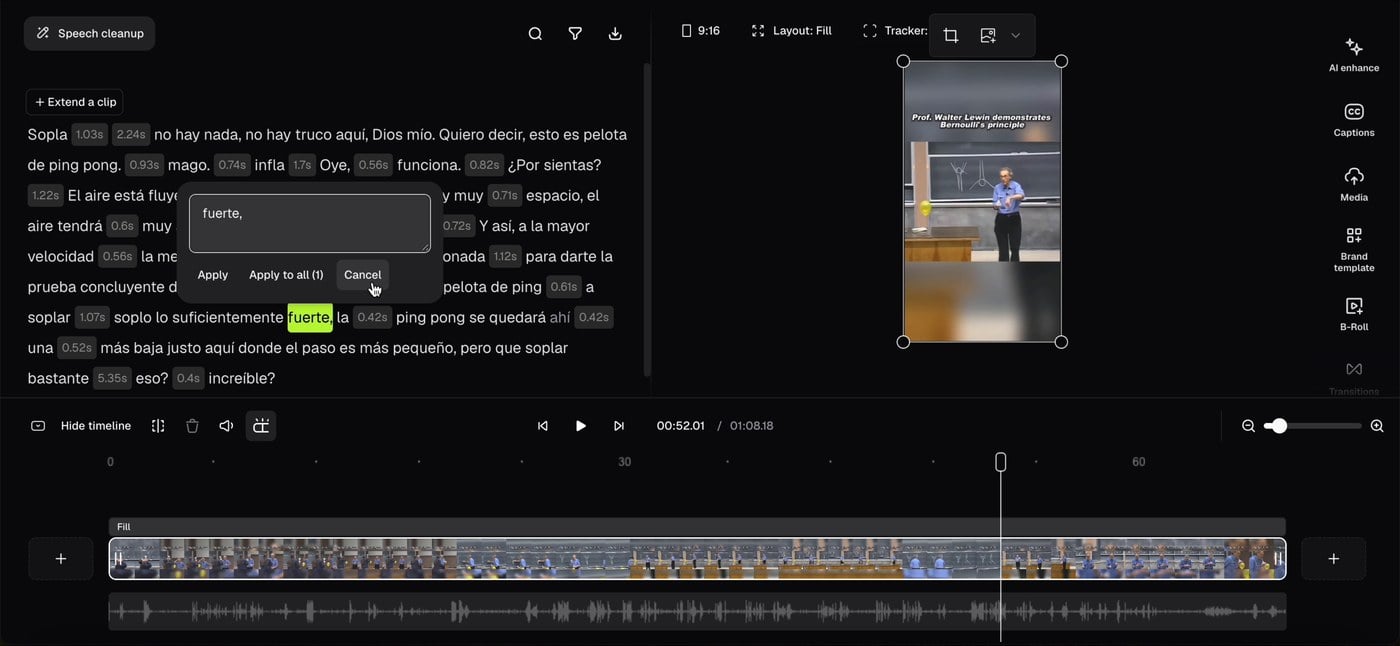
Editing the transcript updates the text only. The dubbed audio is not regenerated — your edits are saved automatically and reflected in the exported video.