
How to upscale a video
- From the Quick Start menu, click Upscale (the 💎 diamond icon marked New).
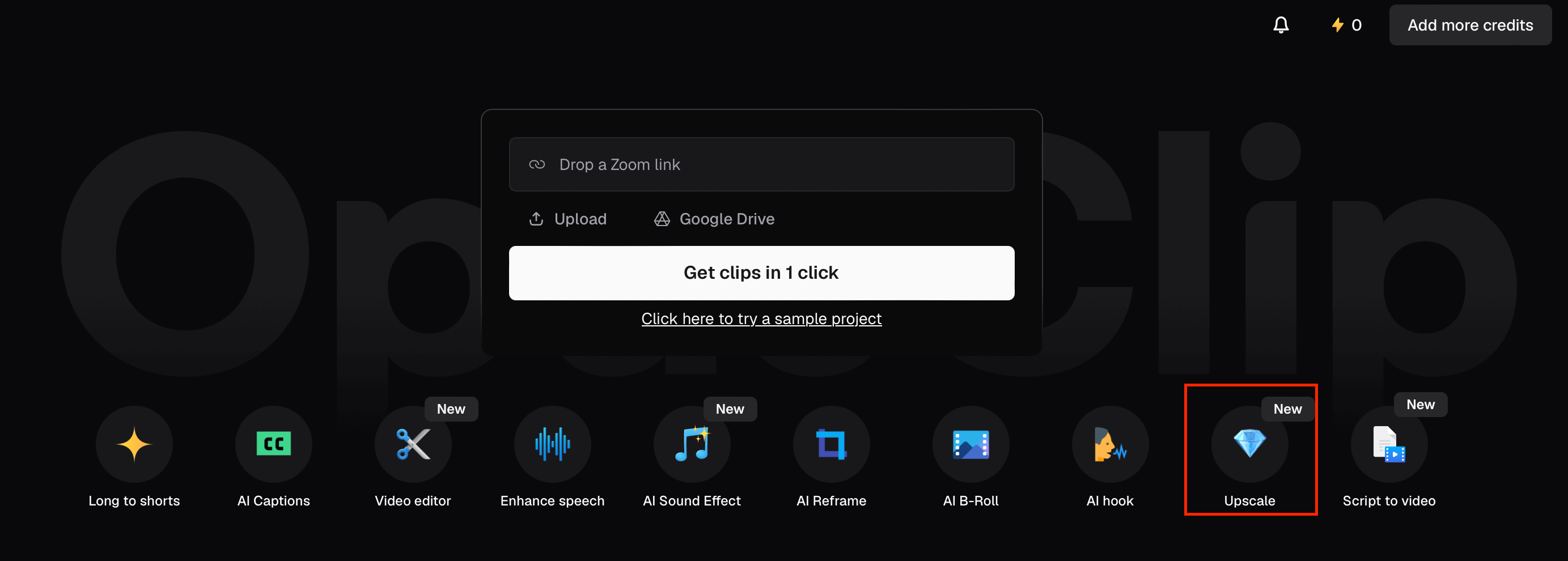
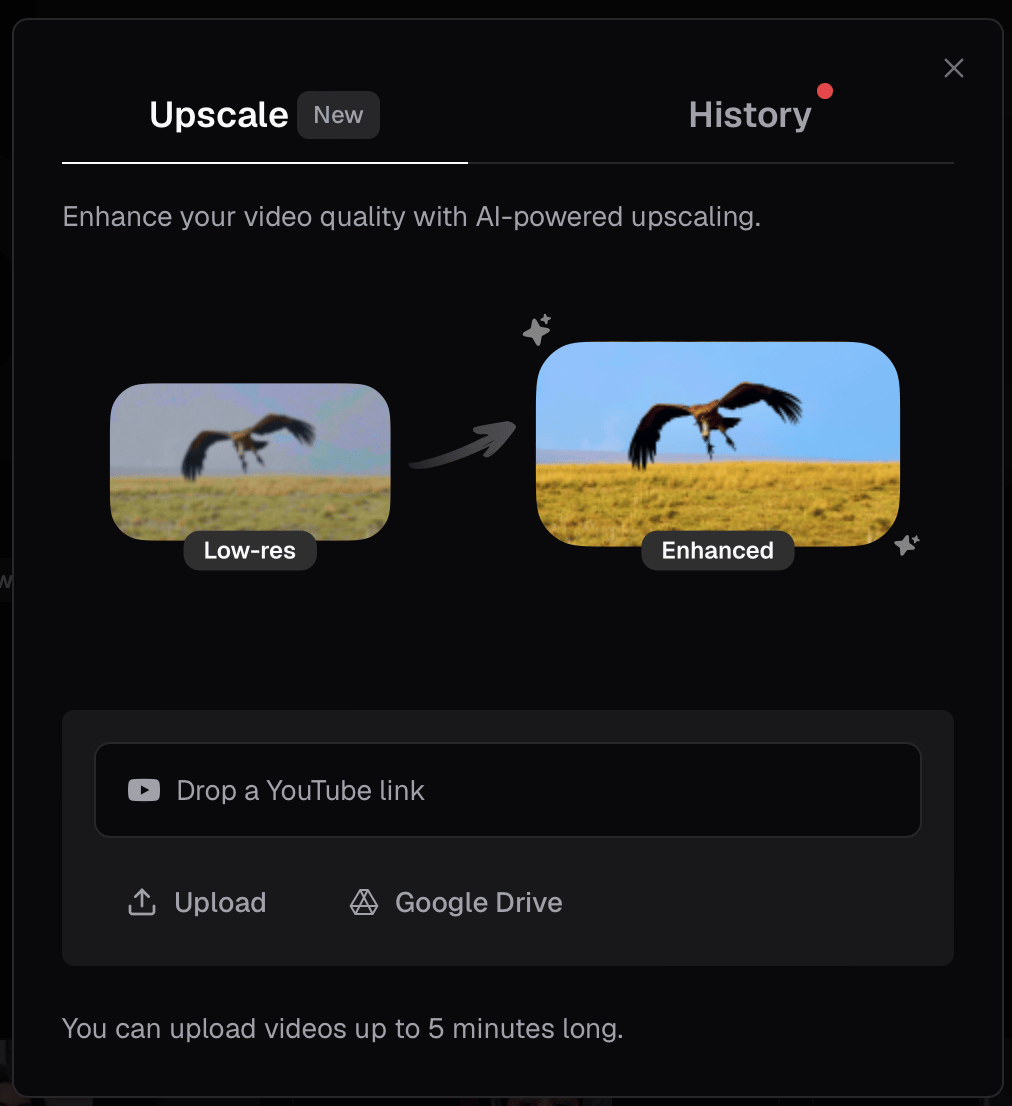
- Add your video: paste a YouTube link, click Upload to select a file from your device, or click Google Drive to import. Videos up to 5 minutes long are supported.
- Once your video is loaded, review the preview and click Upscale to begin processing. The button shows the base upscale cost (e.g. 23 credits). Your total charge may be higher if 4K upscaling applies — see Credit cost below.

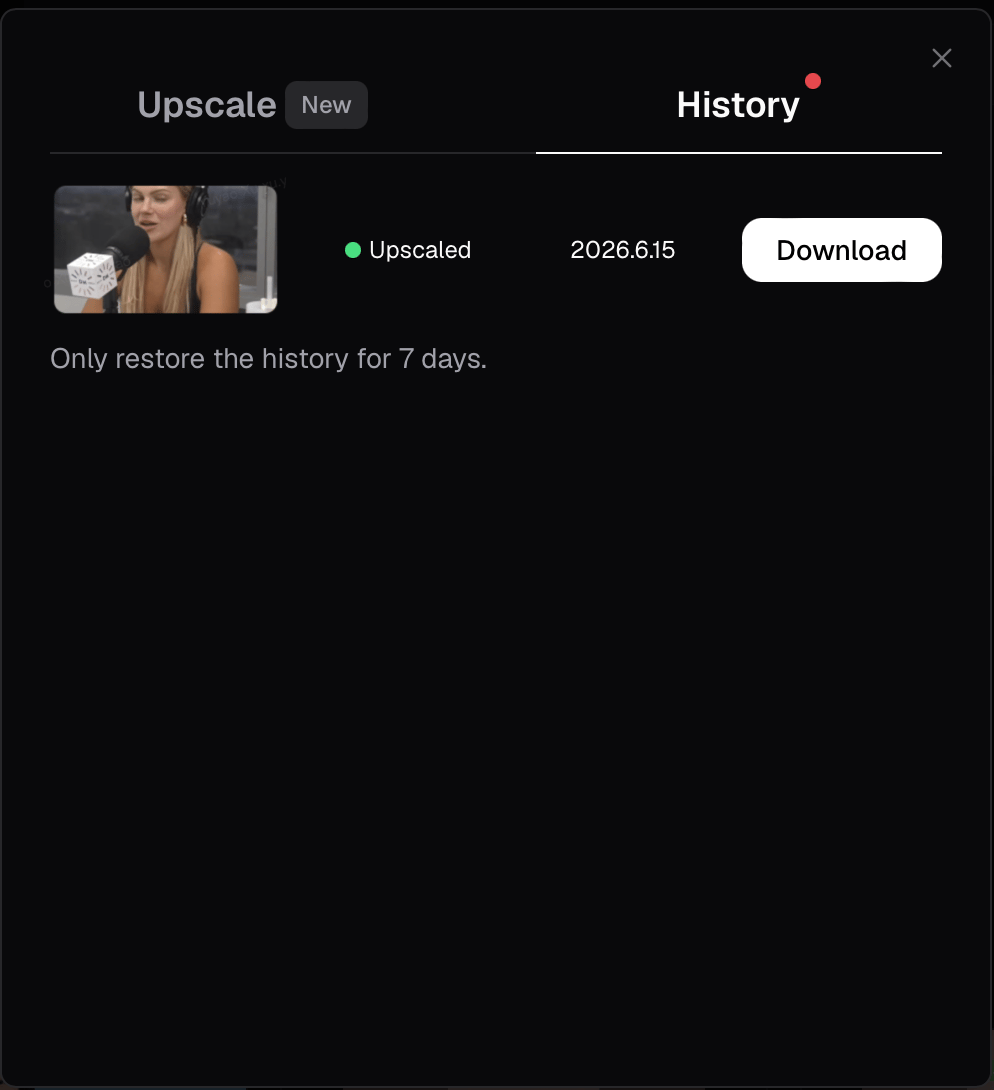
- When upscaling is complete, open the History tab and click Download to save your enhanced video. Upscaled videos are available for 7 days.
Credit cost
The credit amount shown on the Upscale button (e.g. 23 credits) is the base upscale charge. For 4K upscaling on Pro, Max, and Business, an additional incremental charge is calculated from your video length and added on top of the base cost.
- 11 additional credits per 10-second block
- Duration is rounded up to the next 10-second block
- The 4K charge is added to the base video generation / upscale cost — it is not a flat per-minute or per-clip fee