
Overview
You can set up various Brand Templates with your brand color, fonts, logos, and more to make your clips on-brand and more recognizable. To set up your brand template, click Brand Template on the left side panel.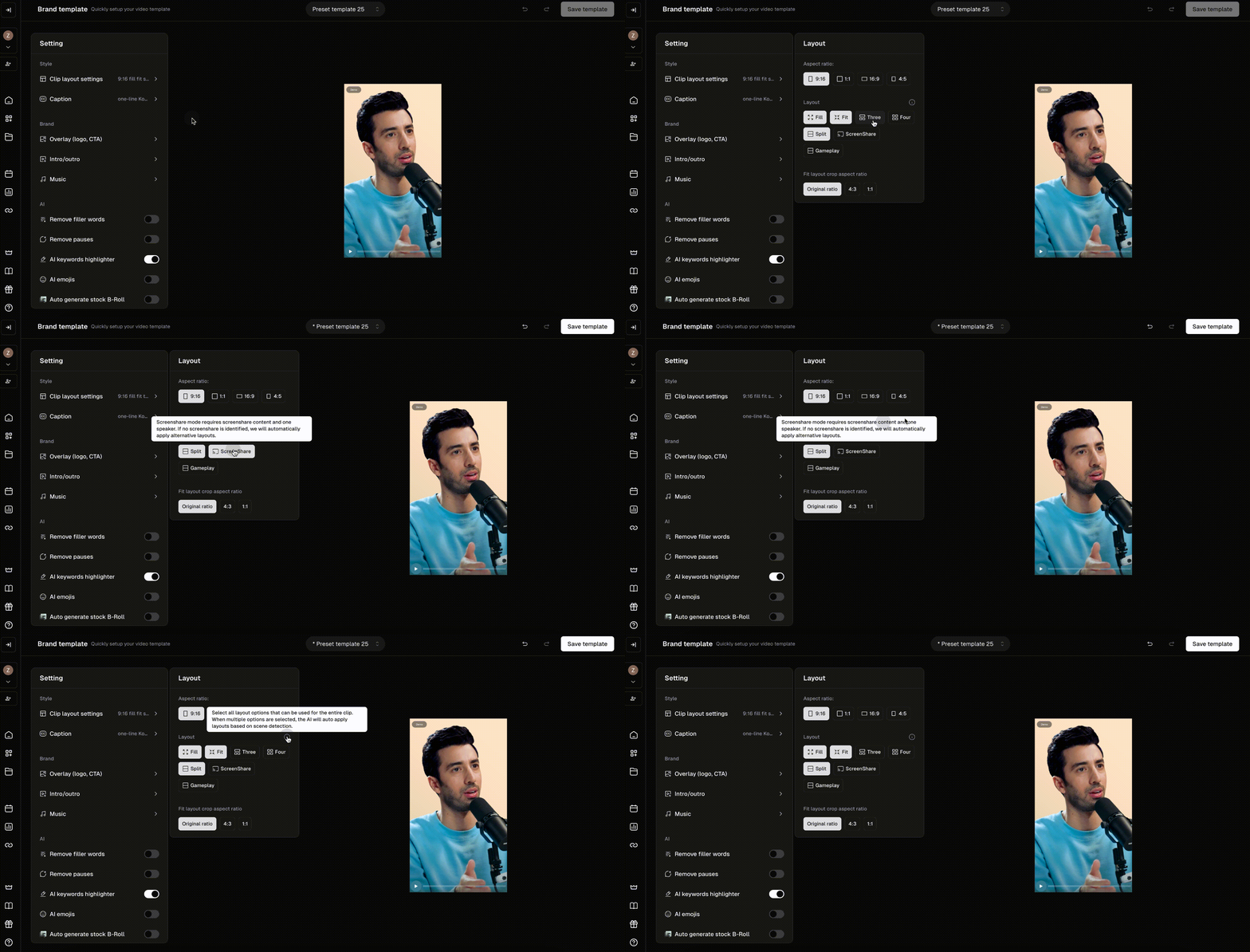
Clip Layout Settings
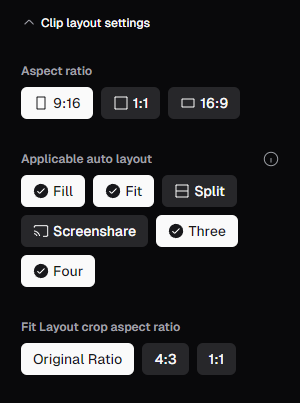
- Aspect Ratio: Brand templates allow you to preset a specific aspect ratio ahead of time and apply it to your clips with a single click. We currently offer 9:16 (Portrait), 1:1 (Square), and 16:9 (Landscape) aspect ratios.
- Auto Layout: You can default to a specific clip layout or set of layouts if you prefer a certain look and format for your clips. For example, if you normally have three speakers on screen, the Three layout would be the best default setting to apply for your brand template. When multiple options are selected, the AI will auto apply layouts based on scene detection.
- Fit Layout Crop Aspect Ratio: When Fit layout is applied, the entire video will be displayed in the clip’s frame. This setting will determine if any additional cropping will be applied to the source video when Fit layout is applied.
- Original Ratio: The video has no additional cropping applied. This is the default setting for Fit.
- 4:3: The video will be cropped into a 4:3 (Landscape) aspect ratio, with blurred bars above and below to pad out the space.
- 1:1: The video will be cropped into a 1:1 (Square) aspect ratio, with blurred bars above and below to pad out the space.
Auto headline styling
Style your Auto headline (the short text overlay shown in the opening seconds of a clip) once in your Brand Template and it will be applied automatically to every clip generated with that template, with no per-clip editing. In the Auto headline section you can set:- Font
- Size
- Weight
- Font color
- Word background color
- Corner radius
- Text box width
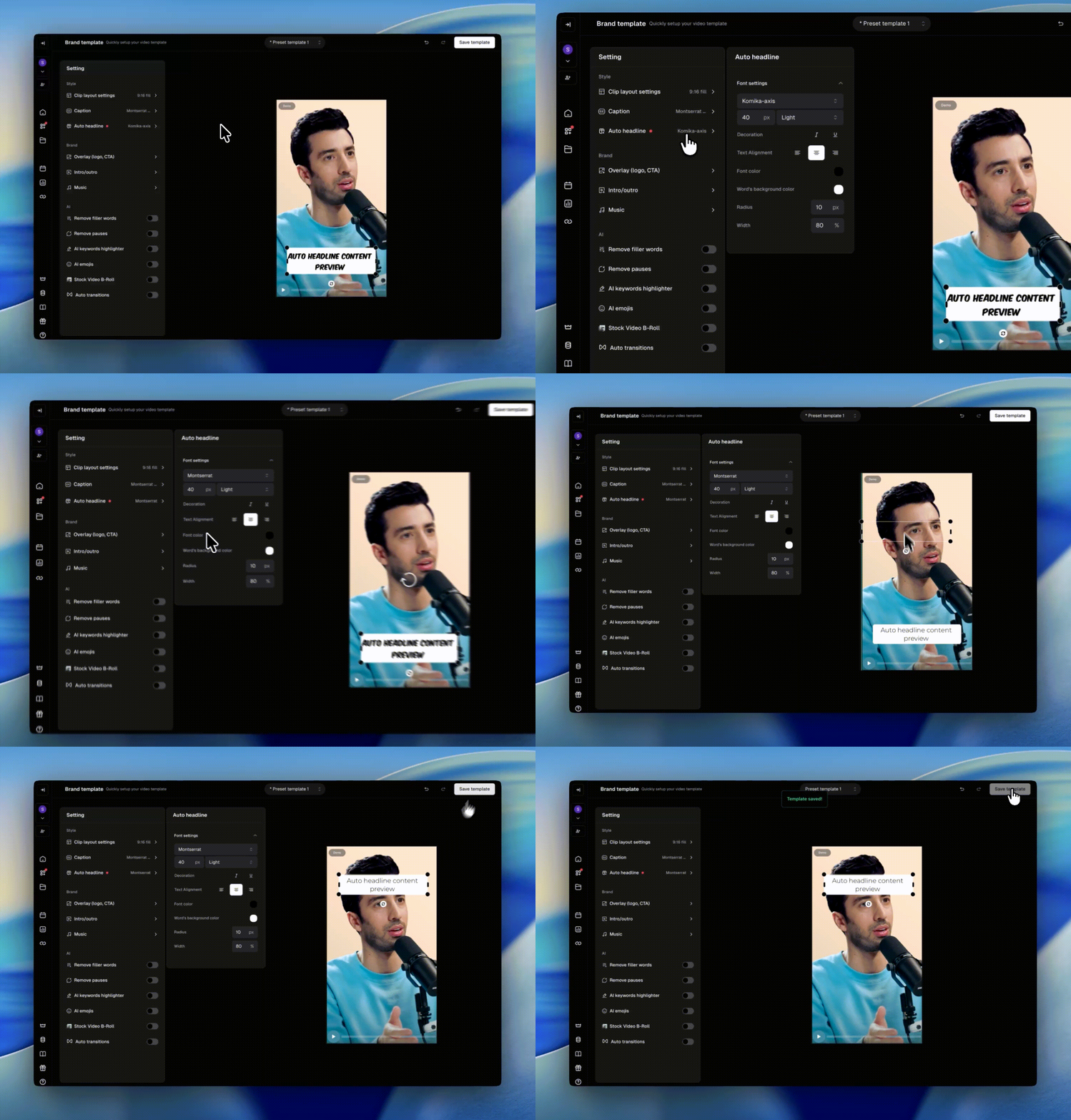
You can enable Auto headline from the upload flow, the editor, or your auto-import settings. Learn more in Auto headline.
Pin first speaker
Pin first speaker is a switch in your Brand Template, just below Auto headline. It controls who appears in the top slot of a Split, Three, or Four layout.- On: The first person who speaks in a scene stays in the top slot. This is the top half in Split and Three, and the top-left in Four. The top slot does not change when another person starts to talk. The same person stays there after a camera cut.
- Off: The top slot shows the person who is speaking at that moment.
When Pin first speaker applies
- It works only when your template uses the Split, Three, or Four layout, or auto layout. A template with only Fill or Fit does not pin a speaker.
- It is made for portrait (9:16) clips from a landscape video of people who talk, such as podcasts, interviews, and news. For these clips, the switch may be on by default for your account.
- When you turn the switch on or off and save the template, your choice stays.
- The setting applies to new projects. Projects that you made before the change keep their layout.
Known limits:
- In a two-person shot where nobody is seen talking, the wrong person can go in the top slot.
- When the camera shows the two people from the reverse angle, the other person can go in the top slot.
- When a clip starts on a close-up of one person, the top slot can change at the next camera cut.
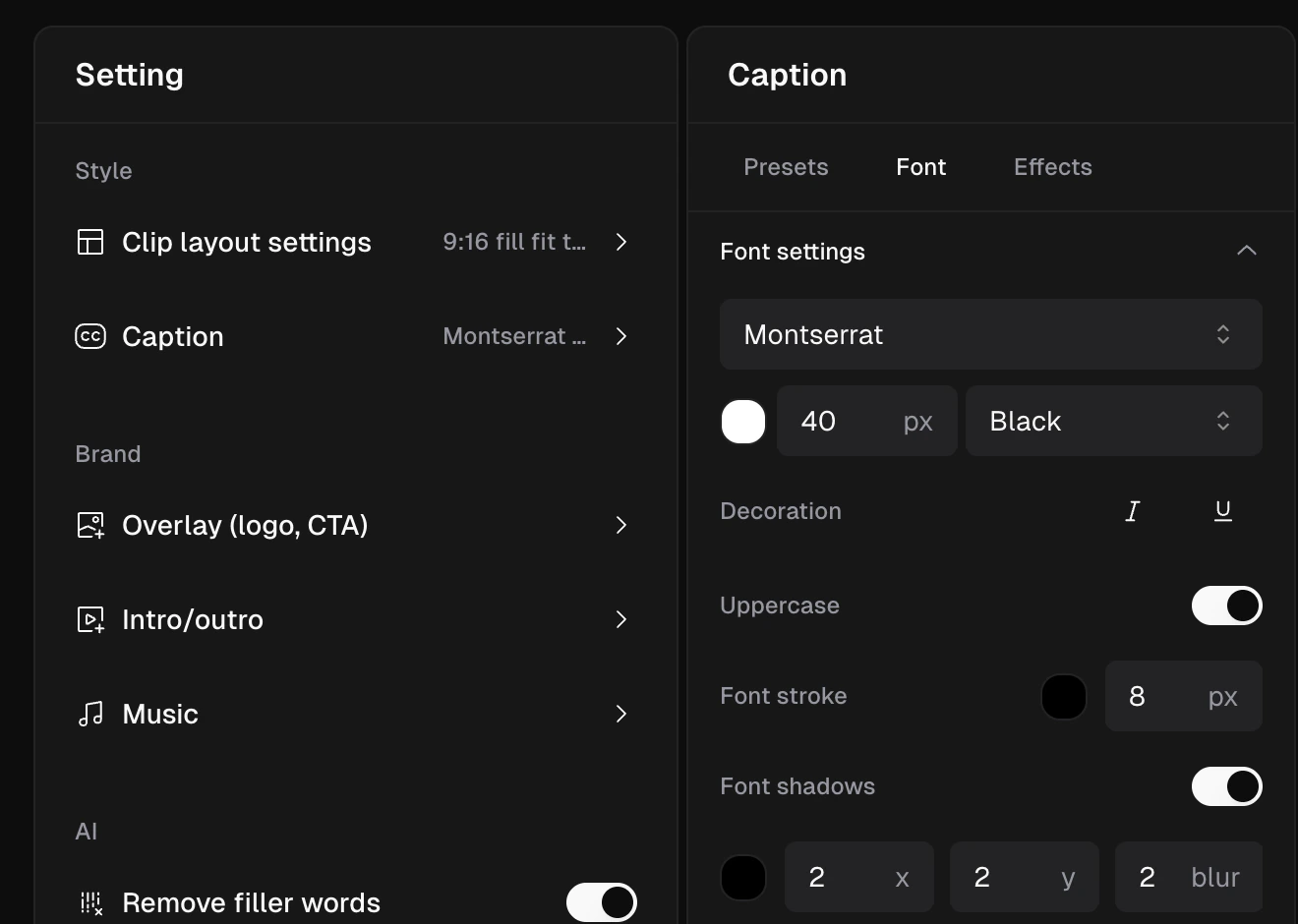
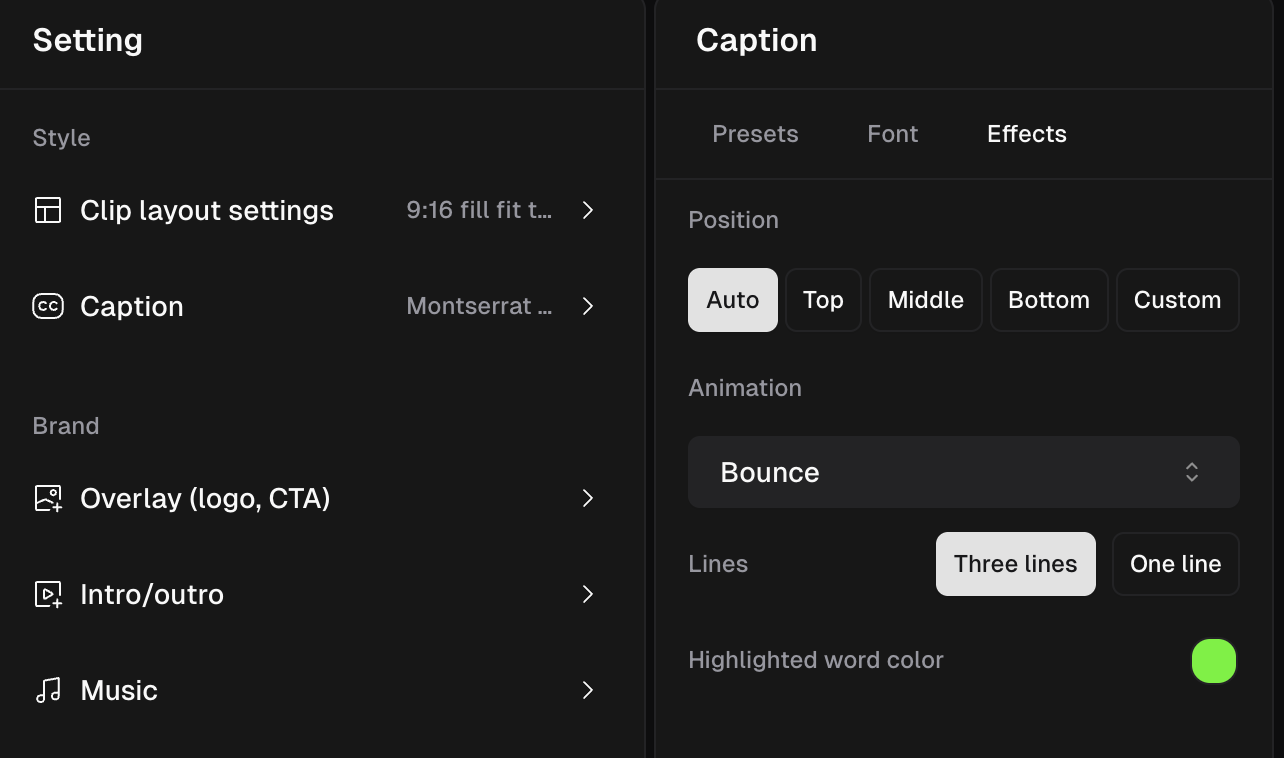
Caption
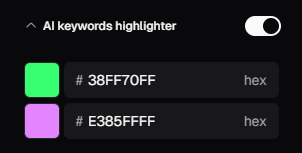
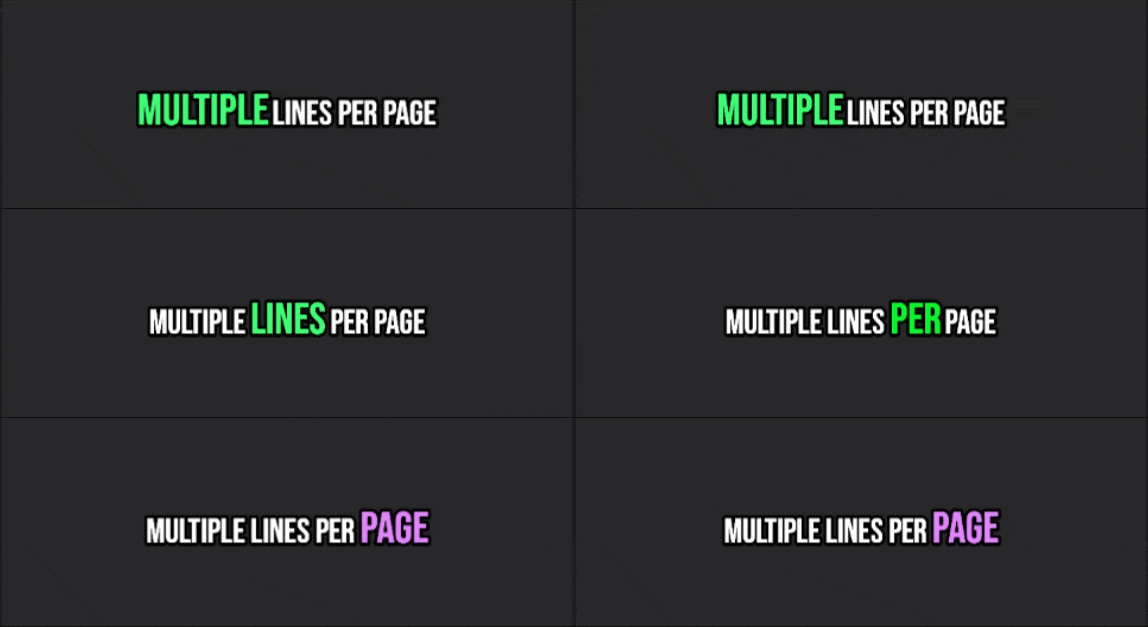
AI Keywords Highlighter
Overlay
Brand your clips and make them instantly recognizable by applying your logo or CTA (Call to Action) image to your clips! Once uploaded, your logo or CTA can be resized and placed anywhere on the canvas, enabling you to create a visually distinct clip with your brand template.PNG format is recommended for any CTAs or overlays that take up a majority of the screen so that it doesn’t fully cover the clip.
Add Intro/Outro
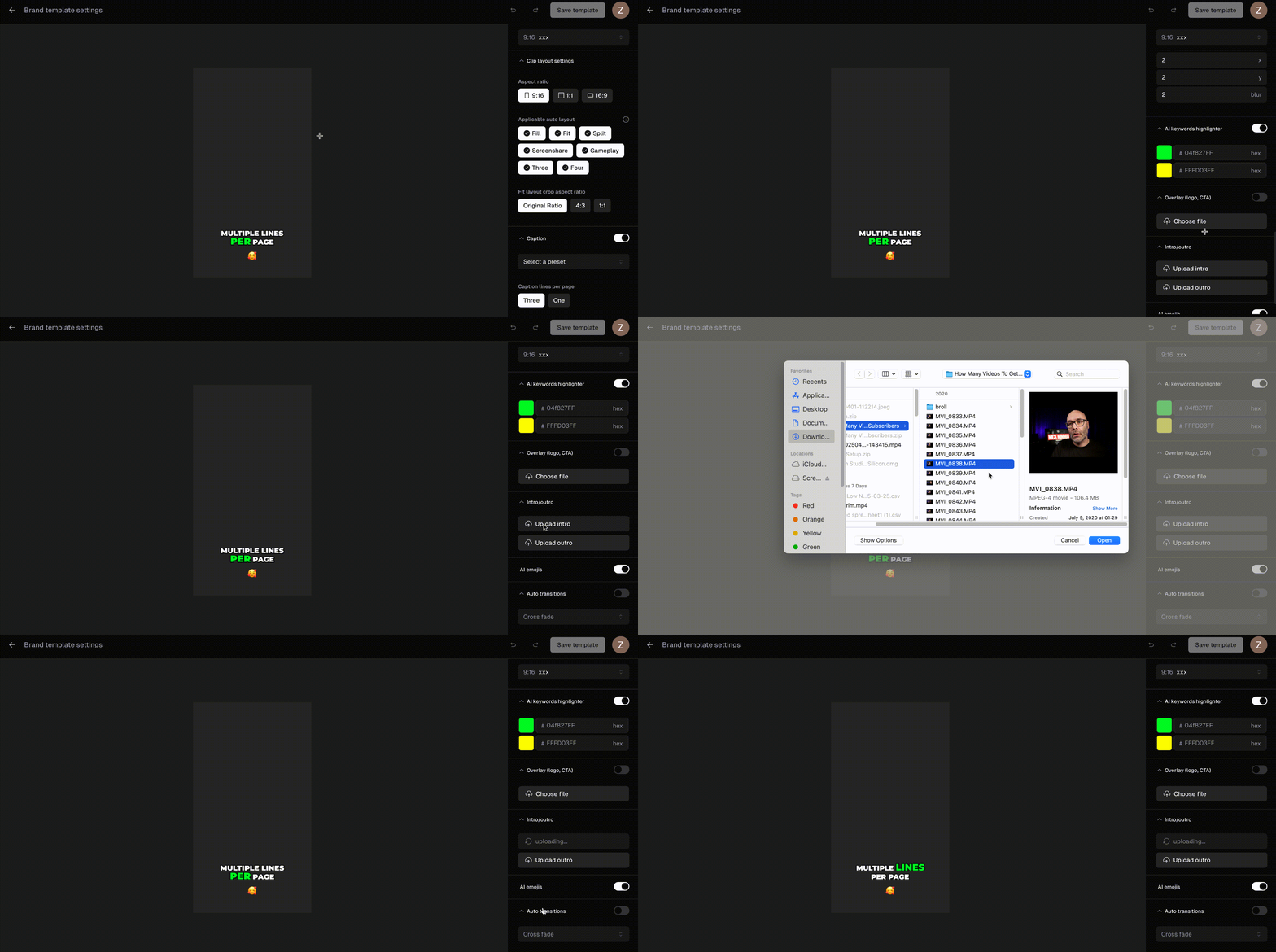
We only allow uploads up to 1 minute and 200MB files for Intro/Outro. If you upload more than allowed, you will see an error message.
AI Emojis
Our AI will attempt to add relevant emojis based on the captions on screen, which can add another layer of engagement and cohesiveness to your clips. The emoji position can be moved around freely on the clip canvas and toggled on and off.Auto Transitions
A stock transition from our library can be applied to your clips on scene transition, saving hours of manual editing and enabling smooth transitions from one shot to another. There are currently 6 different transitions that can be applied, and this feature can be toggled on and off as well.Save and Apply
Don’t forget to save your Brand Template once you are finished tuning it exactly to your needs by clicking Save template in the top right of the editor.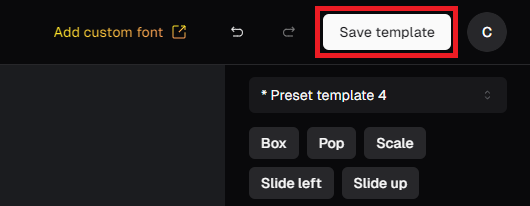
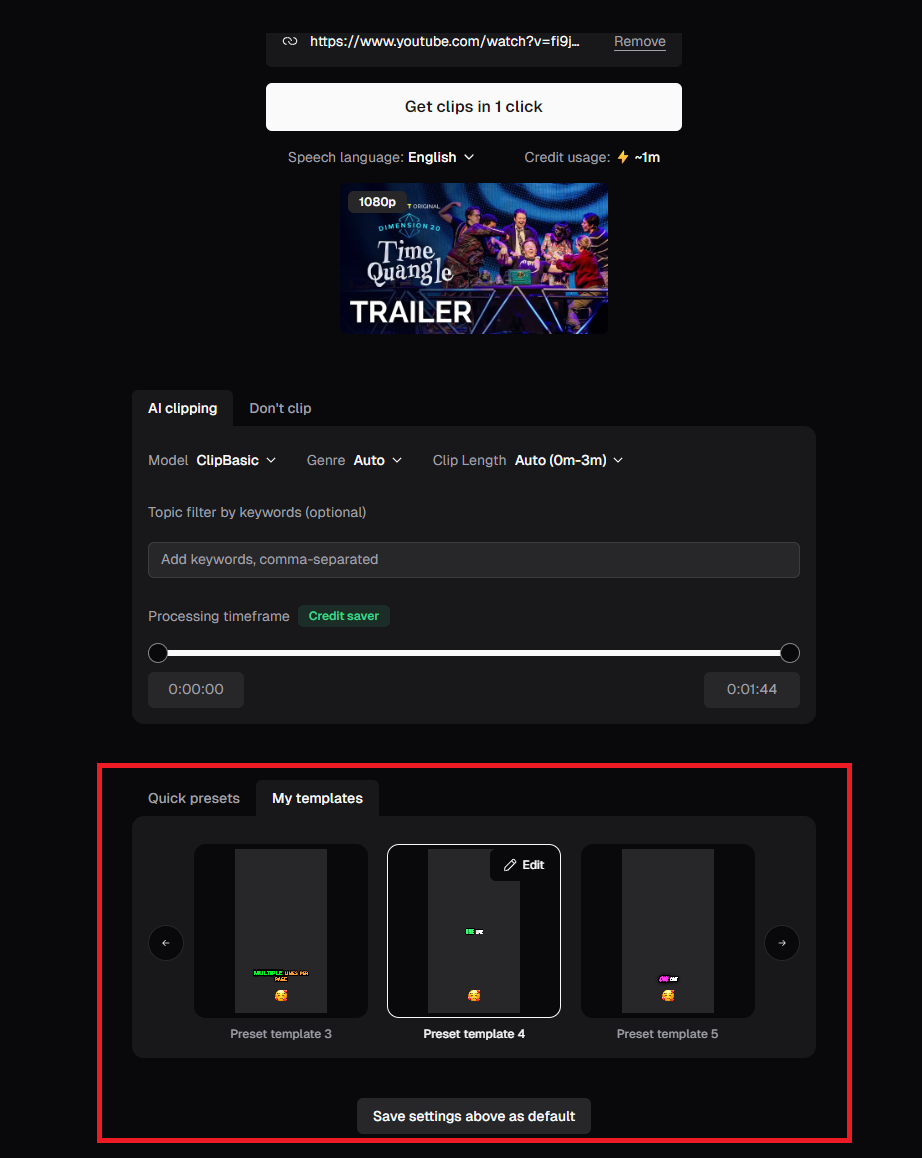
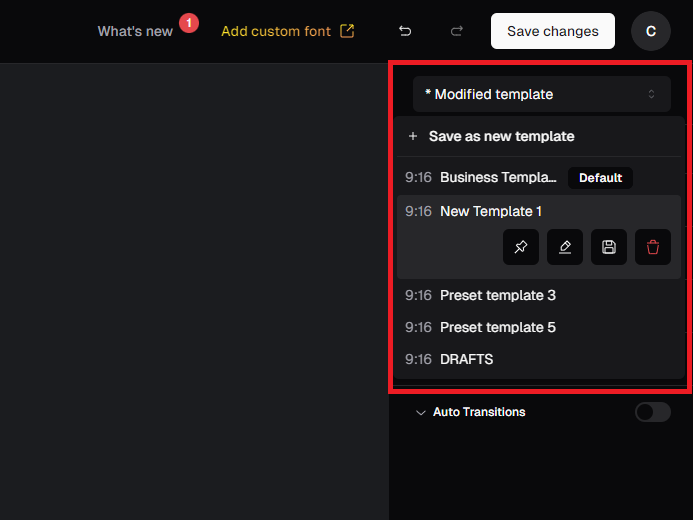
Pro Plan users have 2 templates available. You can now purchase an add-on pack to double your cap to 4 templates. To get more templates, please fill out this form to learn about our enterprise plan: https://www.opus.pro/contact