> ## Documentation Index
> Fetch the complete documentation index at: https://help.opus.pro/llms.txt
> Use this file to discover all available pages before exploring further.
# Video Clone & Dubbing
Video Dubbing lets you translate and dub your videos into 25 languages using a clone of your own voice — no re-recording or external dubbing studio required. The dubbed output sounds like you, not a generic AI voice.
## How to dub a video
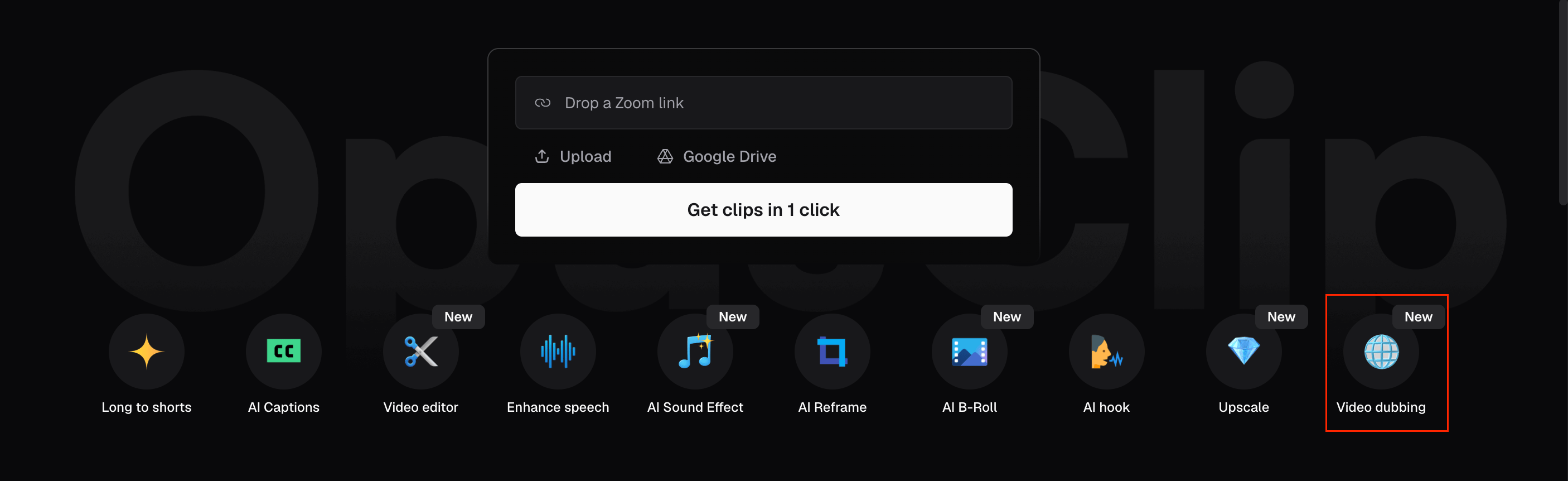
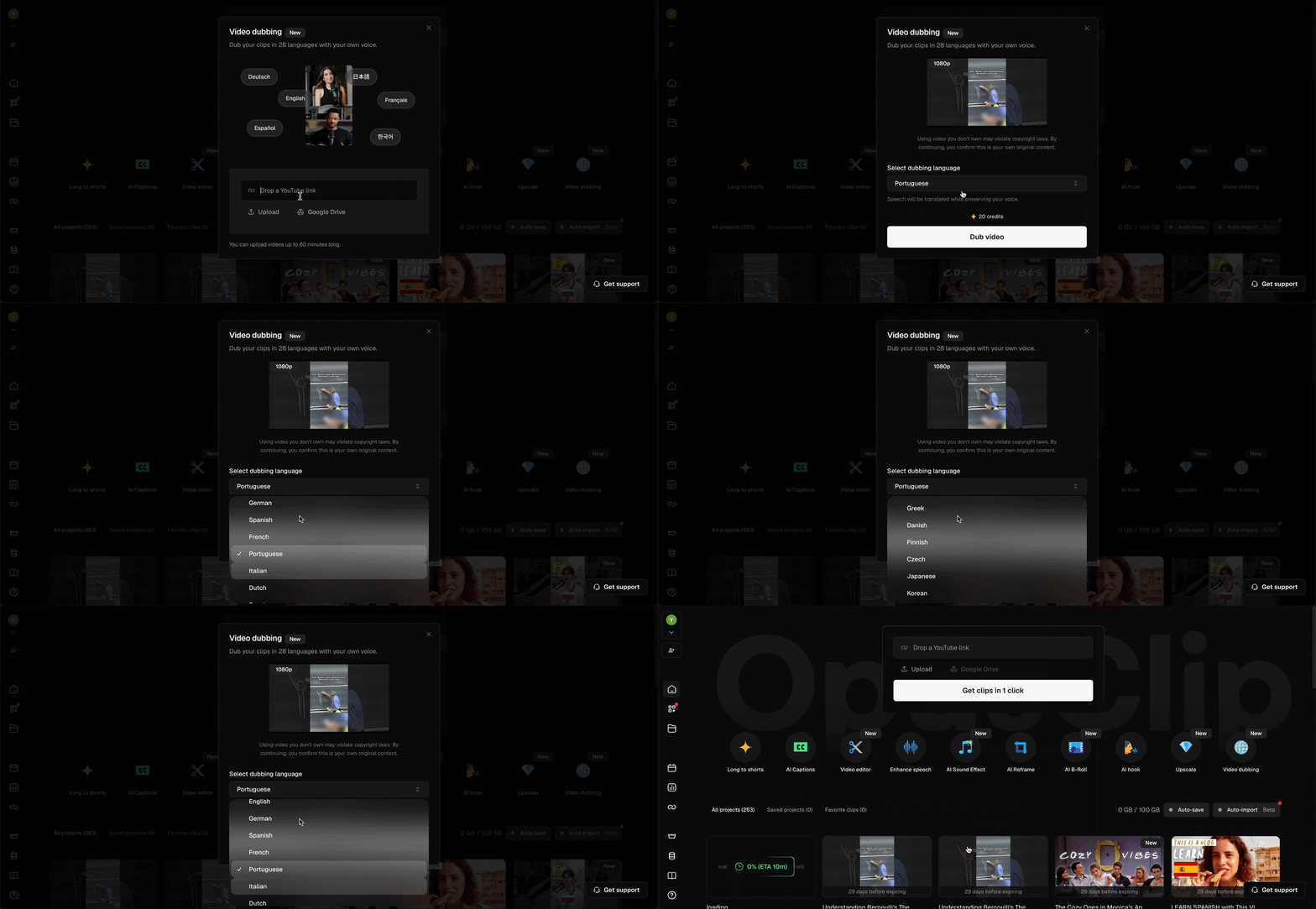
1. Click **Video dubbing** in the Quick Start menu on the OpusClip dashboard.
2. Paste a YouTube link, upload a file, or connect Google Drive. Select your target language and click **Dub Video**. OpusClip clones your voice from the source video and generates the dubbed audio automatically.
3. When processing is complete, the dubbed video appears as a new asset in your project, ready to preview and export.
## Other ways to access Video Dubbing
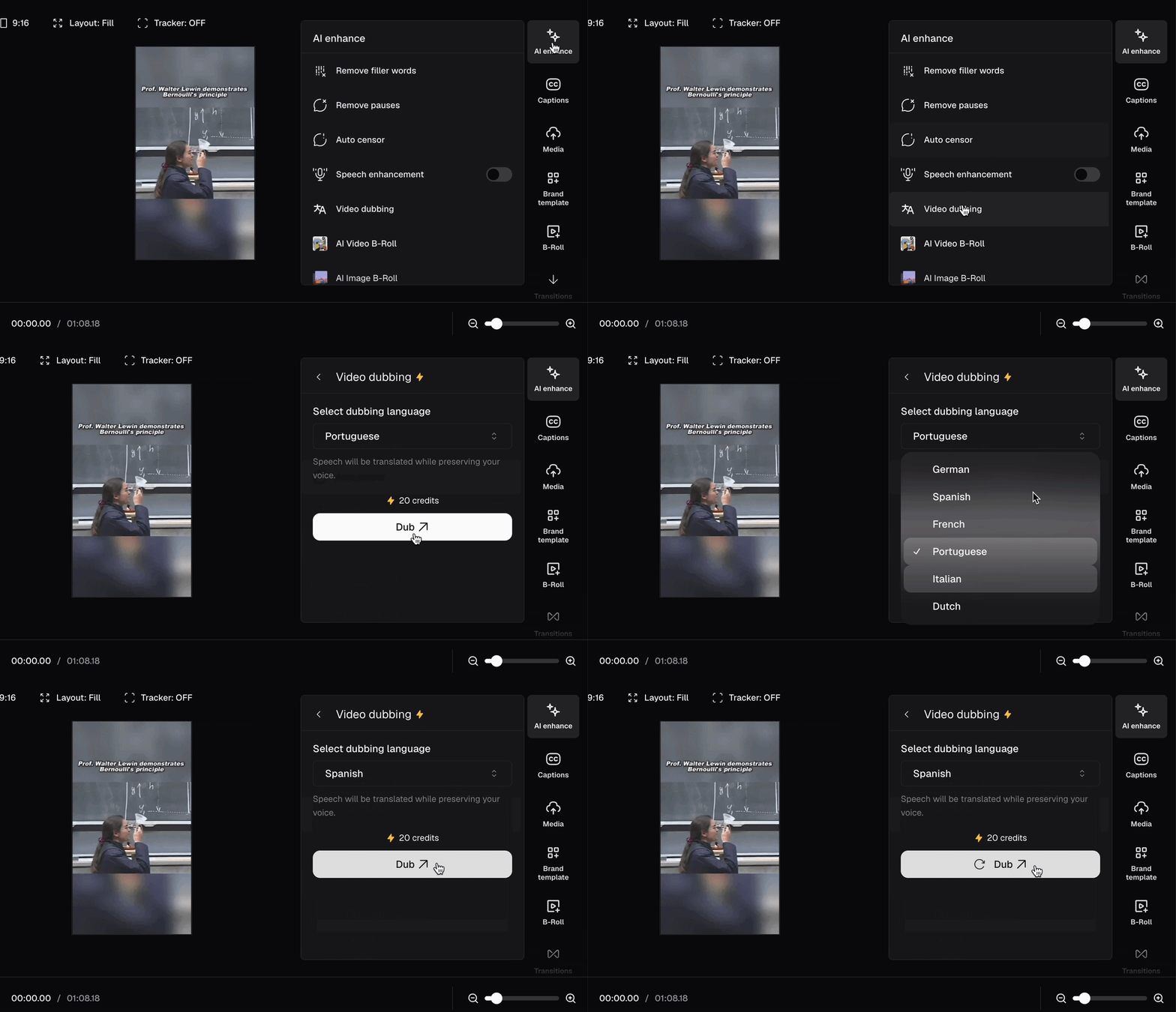
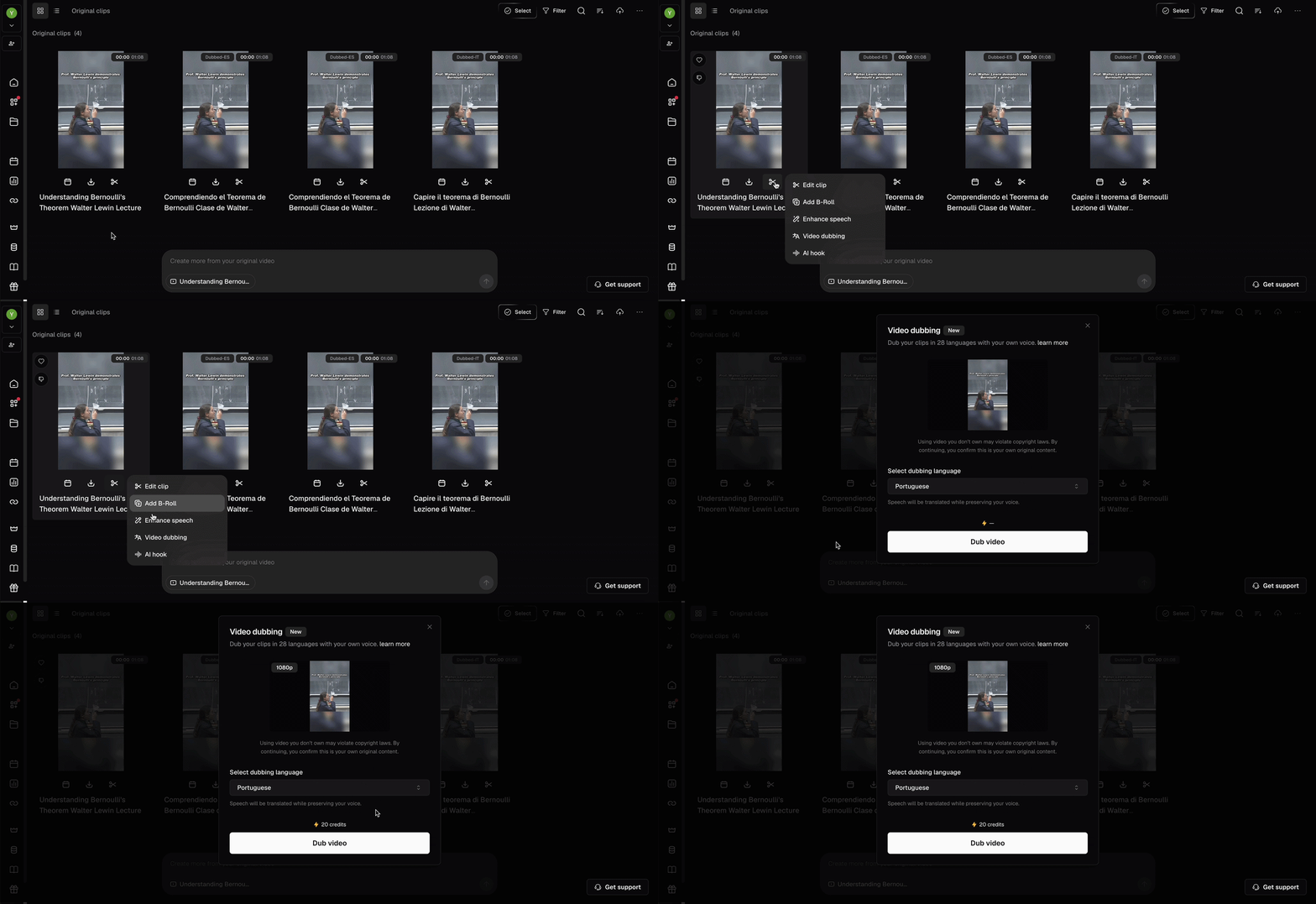
1. **From the editor** — Open a clip in the editor and click **AI enhance** in the right sidebar. Click **Video dubbing**, then use the **Select dubbing language** dropdown to choose your target language and confirm.
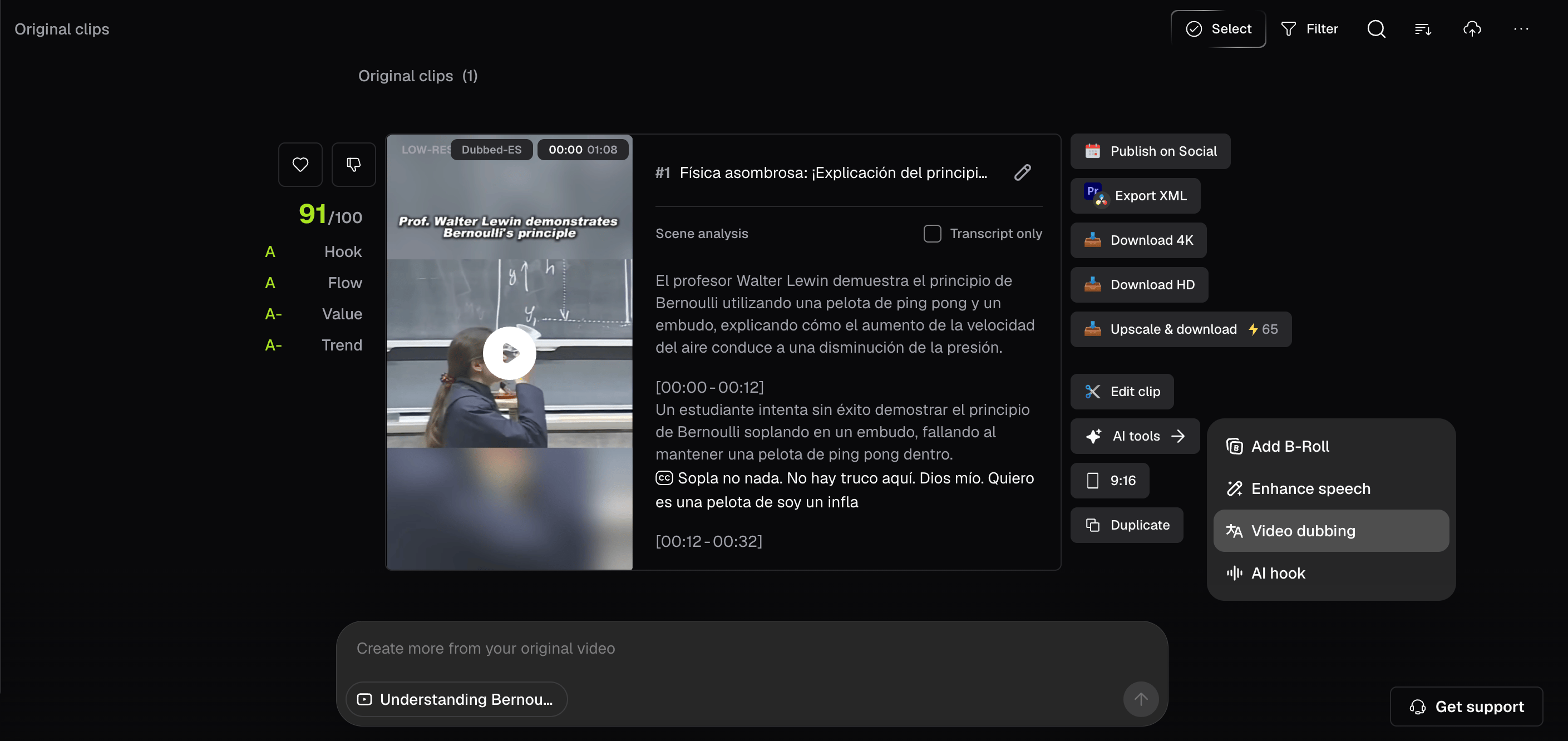
2. **From the results page** — Click **AI tools**, then select **Video dubbing** from the dropdown.
3. **From the Grid View** — Hover over any clip in your library and click the **Edit** (scissors icon) menu. Select **Video dubbing** from the dropdown.
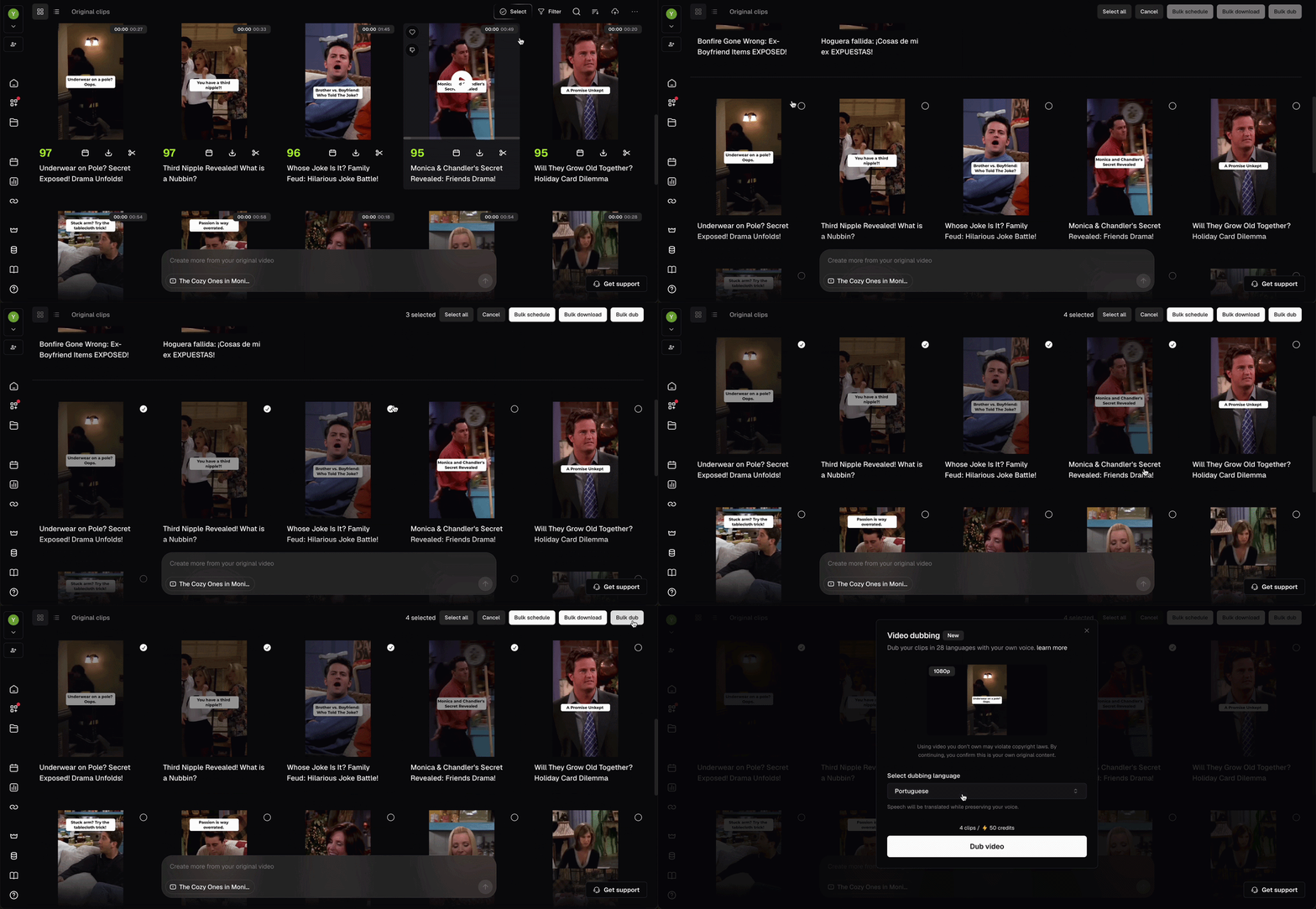
4. **Bulk dubbing** — Select multiple clips using the checkboxes, then click **Bulk dub** in the action bar at the top right. Choose a language, confirm, and each clip is processed individually. When the full batch is complete, you'll receive a notification.
## Editing the dubbed transcript
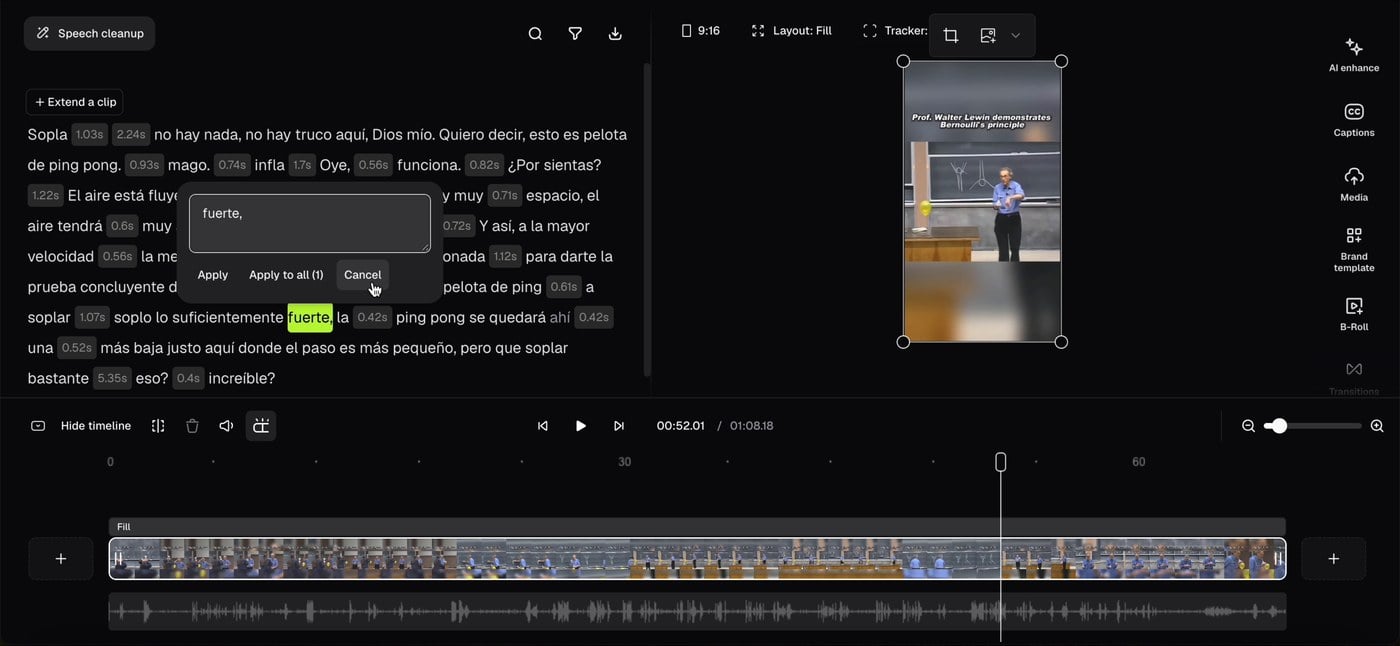
After dubbing is complete, open the dubbed clip in the editor. The translated transcript appears in the left panel — click **Edit clip** from your library to open it. Click any word or segment in the transcript to edit it inline. A text field appears with **Apply**, **Apply to all**, and **Cancel** options. Changes reflect immediately in both the transcript and the subtitles on the video preview.
Editing the transcript updates the text only. The dubbed audio is not regenerated — your edits are saved automatically and reflected in the exported video.
## Plan availability
| Plan | Video Dubbing |
| -------- | ------------------ |
| Free | — |
| Starter | — |
| Pro | ✅ (10 credits/min) |
| Business | ✅ (10 credits/min) |
## FAQ
**Does voice cloning happen automatically?**
Yes, OpusClip clones the voice from your source video automatically during dubbing. No separate setup or voice training is required.
**What happens if my video has multiple speakers?**
Multi-speaker detection is supported on all plans. All speakers are dubbed using the cloned voice of the primary speaker.
**Can I edit the translation after dubbing?**
Yes, the translated transcript in the left panel is editable inline. Text changes are reflected in subtitles immediately, but the dubbed audio track is not regenerated.
**How many languages are supported?**
Video Dubbing currently supports 25 languages, including English, German, Spanish, French, Portuguese, Italian, Dutch, Russian, Polish, Indonesian, Ukrainian, Swedish, Turkish, Norwegian, Croatian, Romanian, Slovak, Greek, Danish, Finnish, Hungarian, Czech, Japanese, Korean, and Vietnamese.