> ## Documentation Index
> Fetch the complete documentation index at: https://help.opus.pro/llms.txt
> Use this file to discover all available pages before exploring further.

# Things You Should Set Up First

Welcome to OpusClip! Below you will find the top things to set up to get you started with OpusClip.

## Create Your Brand Templates

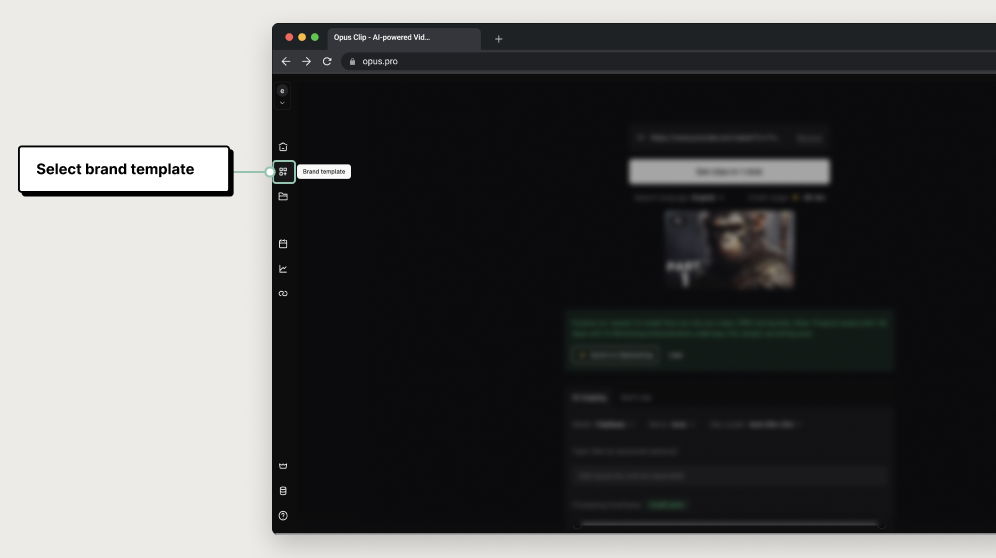
**Brand template** is a place where you can set up your branding preferences and apply them to all of your clips. To set up your brand template, click the icon below the house icon or visit [here](https://clip.opus.pro/brand-templates).

On the **Brand Template** page, you can set up your preferences. Free and Starter users can set up 1 brand template, and Pro users are able to set up 2 brand templates.

<div className="img-frame">
  <img src="https://mintcdn.com/opusclip-c3e48c12/5TopqQ1f1asfSLn4/images/imgs/snapshot-112.png?fit=max&auto=format&n=5TopqQ1f1asfSLn4&q=85&s=41b46ce325607568f26e651fdc4185d0" noZoom width="996" height="558" data-path="images/imgs/snapshot-112.png" />
</div>

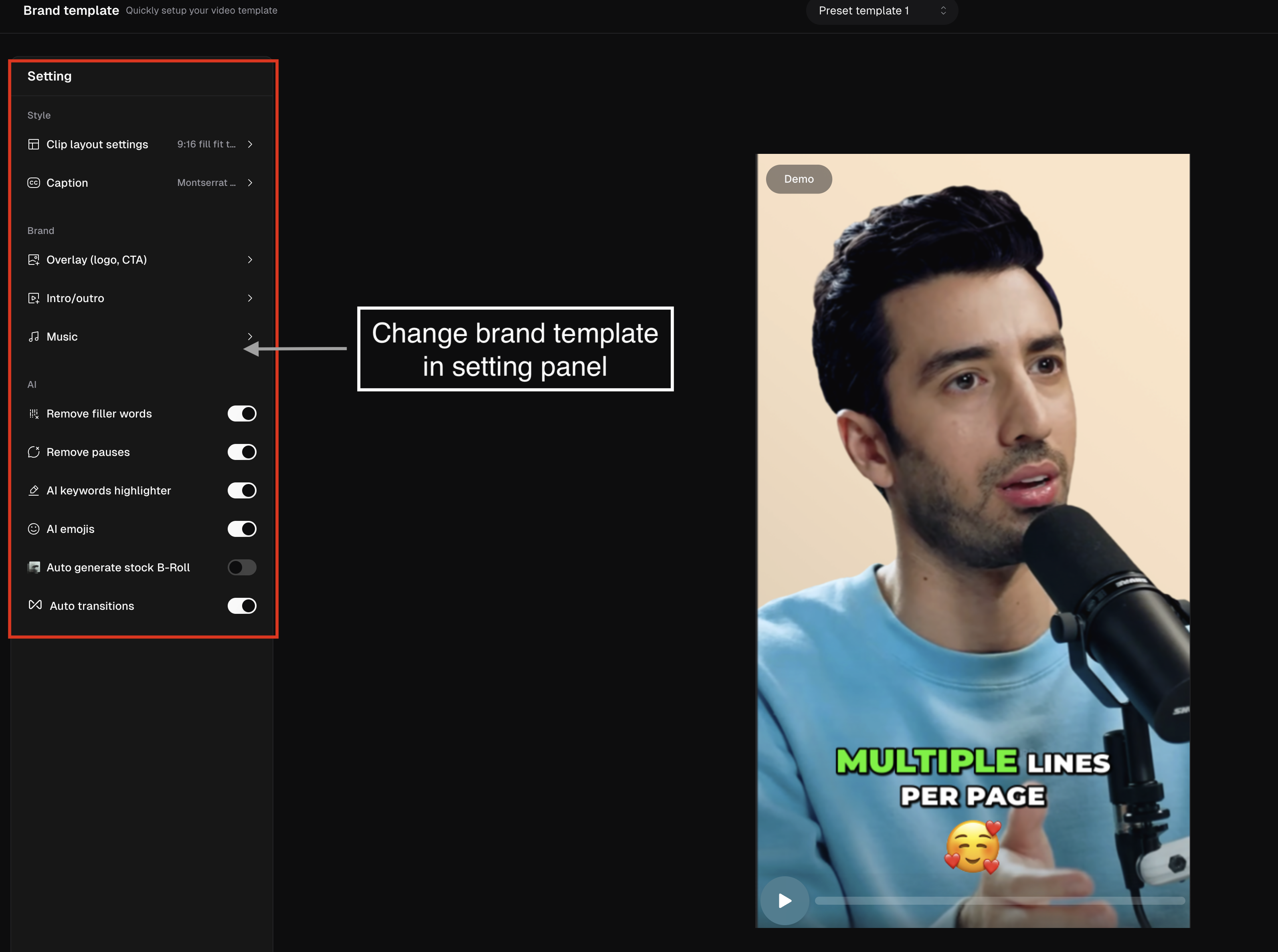
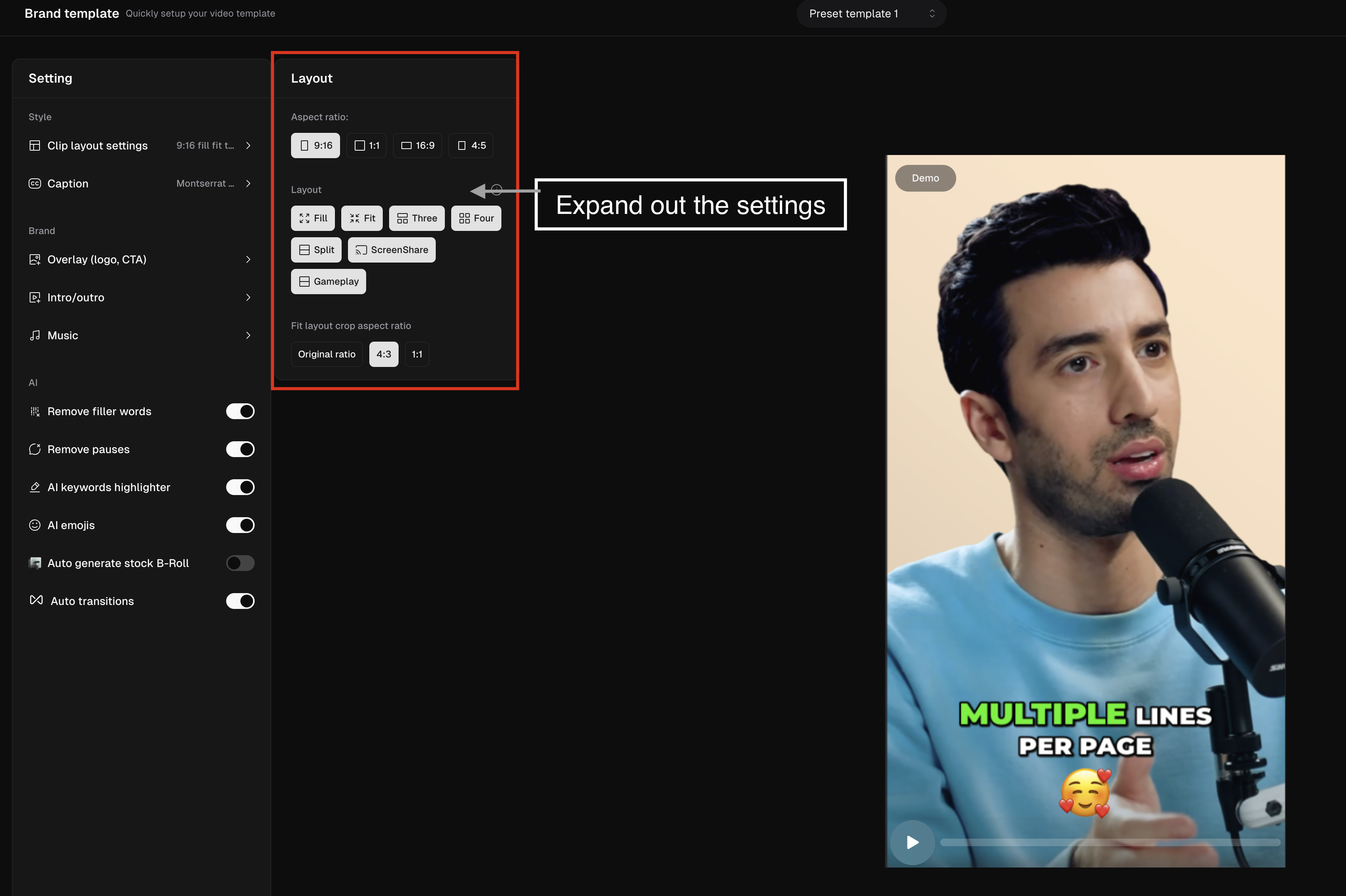
On the left hand side are the settings that will change your **Brand Template**. You can click onto the areas to expand out the settings.

<div className="img-frame">
  <img src="https://mintcdn.com/opusclip-c3e48c12/7i57AL9_SzMSJI7P/images/imgs/screenshot0408-01.png?fit=max&auto=format&n=7i57AL9_SzMSJI7P&q=85&s=d2952e9acff26a454454ce5b2fa26ae4" noZoom width="3188" height="2376" data-path="images/imgs/screenshot0408-01.png" />
</div>

<div className="img-frame">
  <img src="https://mintcdn.com/opusclip-c3e48c12/7i57AL9_SzMSJI7P/images/imgs/screenshot0408-02.png?fit=max&auto=format&n=7i57AL9_SzMSJI7P&q=85&s=3a392269aa3d28a468c376fac916446a" noZoom width="3404" height="2266" data-path="images/imgs/screenshot0408-02.png" />
</div>

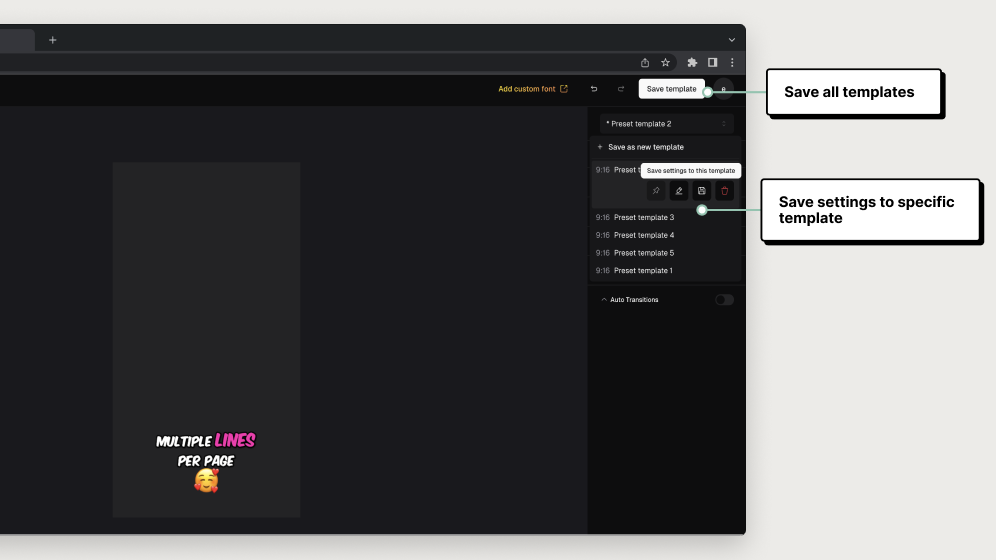
Click **Save template** at the top right hand corner or from template name dropdown as shown in the screenshot below.

<div className="img-frame">
  <img src="https://mintcdn.com/opusclip-c3e48c12/wWf8oL-5UZ9lZUDC/images/imgs/snapshot-115.png?fit=max&auto=format&n=wWf8oL-5UZ9lZUDC&q=85&s=21c229c303702e36758764cc33882a14" noZoom width="996" height="560" data-path="images/imgs/snapshot-115.png" />
</div>

## Add Your Social Accounts for 1-Click Posting

You can connect your social media accounts to make it easier to post directly from OpusClip. Go to the left tool bar and click **Social Accounts**. When hovering over it, it will display Social Accounts.

<div className="img-frame">
  <img src="https://mintcdn.com/opusclip-c3e48c12/wWf8oL-5UZ9lZUDC/images/imgs/snapshot-116.png?fit=max&auto=format&n=wWf8oL-5UZ9lZUDC&q=85&s=b2be4a08ce74a7a8a88e907a65e9af9b" noZoom width="996" height="558" data-path="images/imgs/snapshot-116.png" />
</div>

Once you've done so, a popup menu will open showing your currently connected accounts and it will also allow you to add new accounts by clicking on the **Add Account button**.

<div className="img-frame">
  <img src="https://mintcdn.com/opusclip-c3e48c12/wWf8oL-5UZ9lZUDC/images/imgs/snapshot-117.png?fit=max&auto=format&n=wWf8oL-5UZ9lZUDC&q=85&s=f7f718d0c7ab7db7cb9bc0ecb3f16d8c" noZoom width="996" height="558" data-path="images/imgs/snapshot-117.png" />
</div>

Click the **Add Account button**, select your desired social media platform, and follow the steps in the pop-up to complete the connection.

<div className="img-frame">
  <img src="https://mintcdn.com/opusclip-c3e48c12/wWf8oL-5UZ9lZUDC/images/imgs/snapshot-118.png?fit=max&auto=format&n=wWf8oL-5UZ9lZUDC&q=85&s=c859a2db860eaefd214bc12e26151a45" noZoom width="996" height="558" data-path="images/imgs/snapshot-118.png" />
</div>

## Setup Your Team Workplace

You can create a **Team Workplace** and invite your teammates to join. Here is how you can do this:

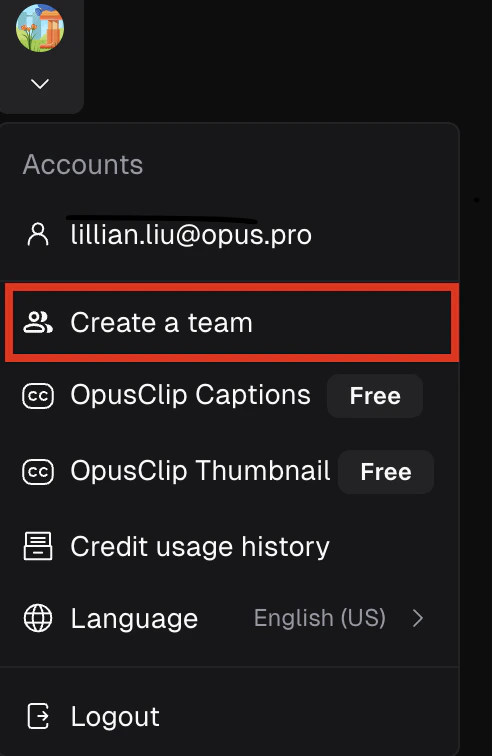
1. Click your **Profile image** on the left sidebar and go to **Create a team**

<div className="img-frame">
  <img src="https://mintcdn.com/opusclip-c3e48c12/7i57AL9_SzMSJI7P/images/imgs/screenshot0408-03.png?fit=max&auto=format&n=7i57AL9_SzMSJI7P&q=85&s=a0e349137d80d3b824150e4d423ddbe8" noZoom width="492" height="756" data-path="images/imgs/screenshot0408-03.png" />
</div>

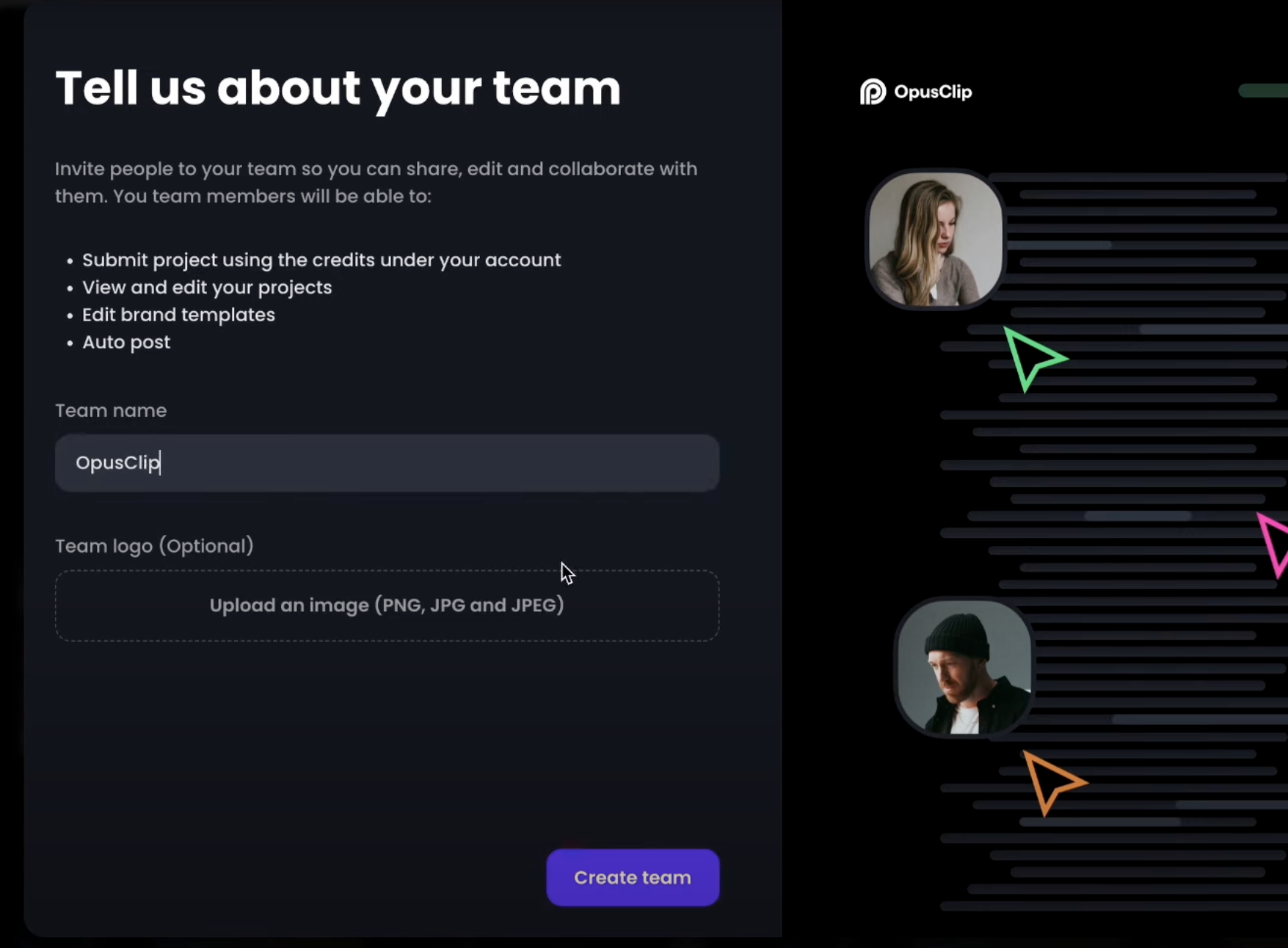
2. Name your **Team Workspace**, add a logo and create the team

<div className="img-frame">
  <img src="https://mintcdn.com/opusclip-c3e48c12/CsfV__T0-LAmxfr6/images/imgs/add-team-2.png?fit=max&auto=format&n=CsfV__T0-LAmxfr6&q=85&s=42da578d10670081b00aac0061dd26e0" noZoom width="1755" height="1292" data-path="images/imgs/add-team-2.png" />
</div>

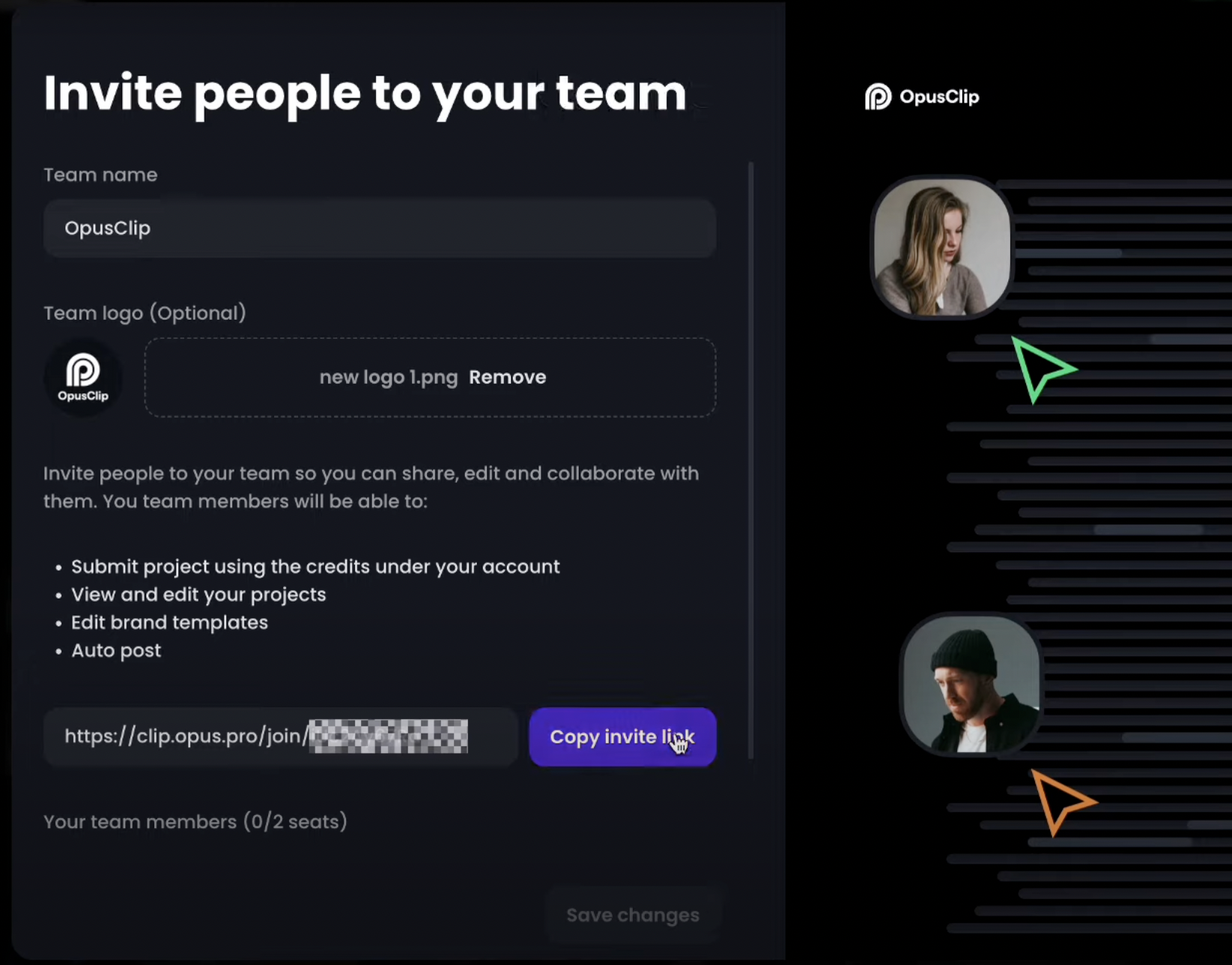
3. Copy the **invitation link** and send it to your teammates.

<div className="img-frame">
  <img src="https://mintcdn.com/opusclip-c3e48c12/CsfV__T0-LAmxfr6/images/imgs/add-team-3.png?fit=max&auto=format&n=CsfV__T0-LAmxfr6&q=85&s=100376947ea20c4750a1e75fbb84baed" noZoom width="1645" height="1288" data-path="images/imgs/add-team-3.png" />
</div>

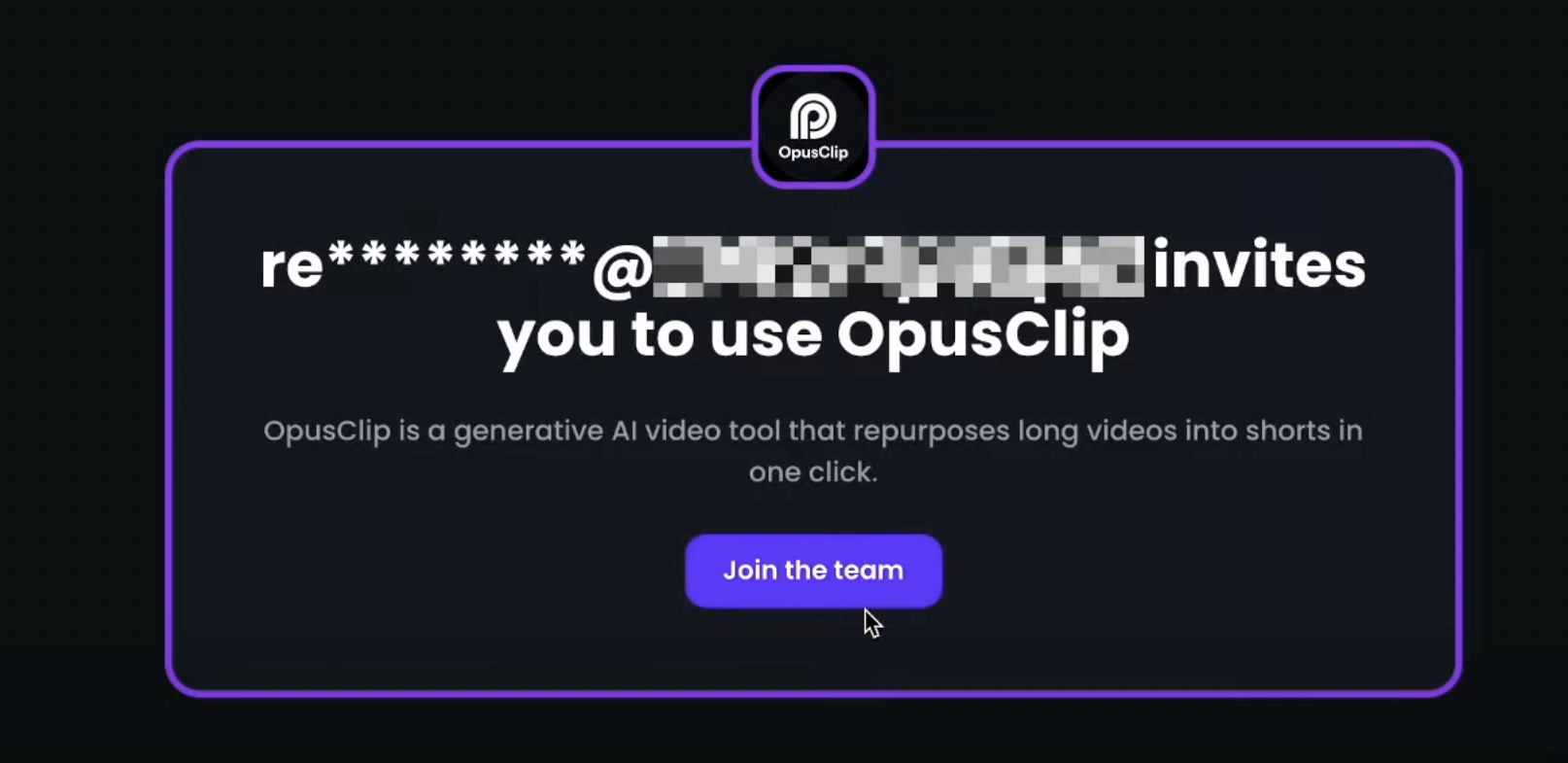
4. Then your teammates can join the team by clicking into the **invitation link**.

<div className="img-frame">
  <img src="https://mintcdn.com/opusclip-c3e48c12/CsfV__T0-LAmxfr6/images/imgs/add-team-4.png?fit=max&auto=format&n=CsfV__T0-LAmxfr6&q=85&s=d26f0fce080267a263e35eda2d649249" noZoom width="1614" height="785" data-path="images/imgs/add-team-4.png" />
</div>

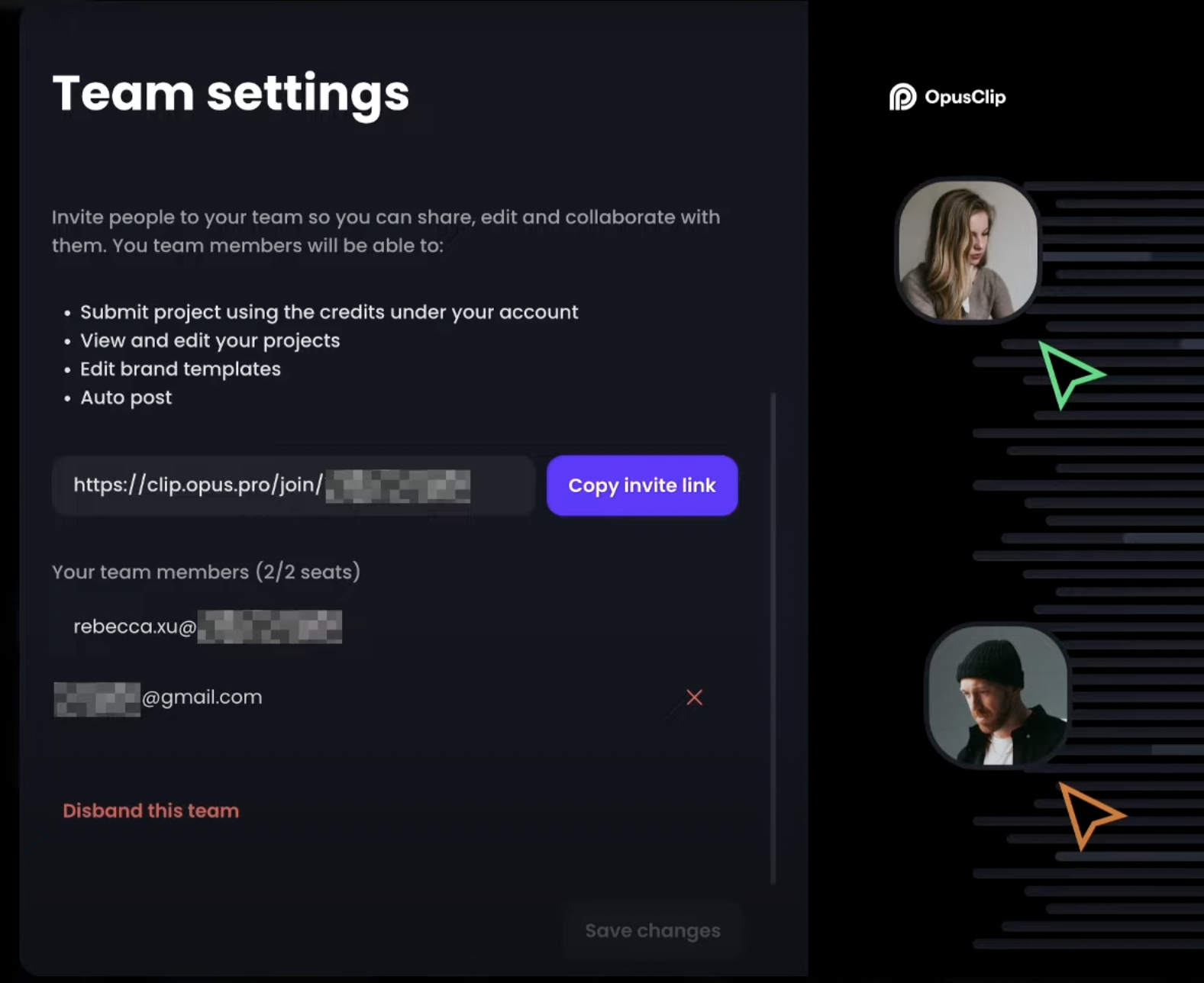
5. As the **team owner**, you can also manage the team members on the **Team settings** page
<div className="img-frame">
  <img src="https://mintcdn.com/opusclip-c3e48c12/CsfV__T0-LAmxfr6/images/imgs/add-team-5.png?fit=max&auto=format&n=CsfV__T0-LAmxfr6&q=85&s=a99ce15d4414b8205f65931872dd84ec" noZoom width="1577" height="1288" data-path="images/imgs/add-team-5.png" />
</div>